1:1 Square
Prepare product grids, profile images, marketplace cards, and square social posts.
Please upload an image first.
Move your cursor over the preview to compare AI uncropping in action, or pick a preset below.
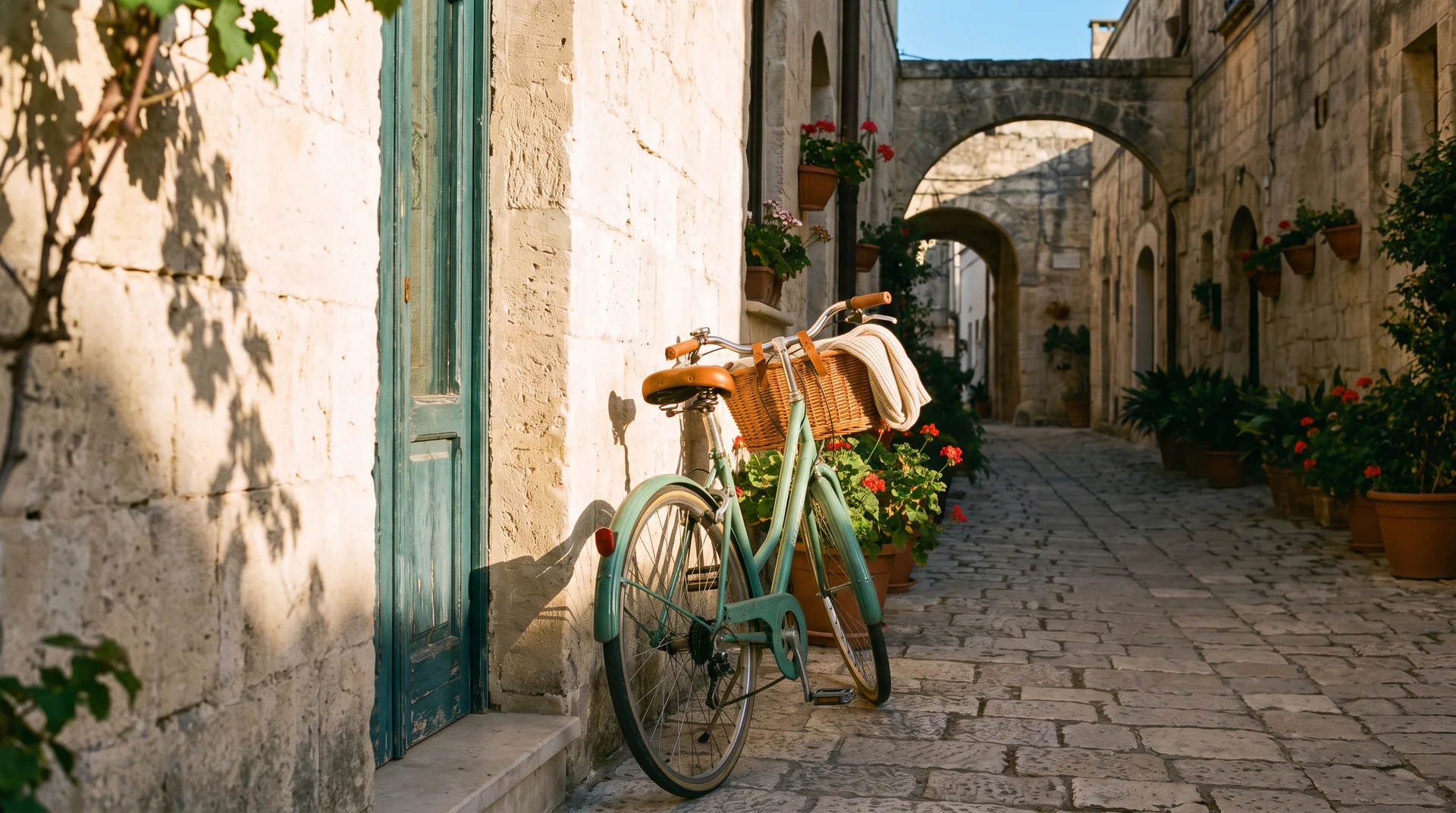 Expanded After
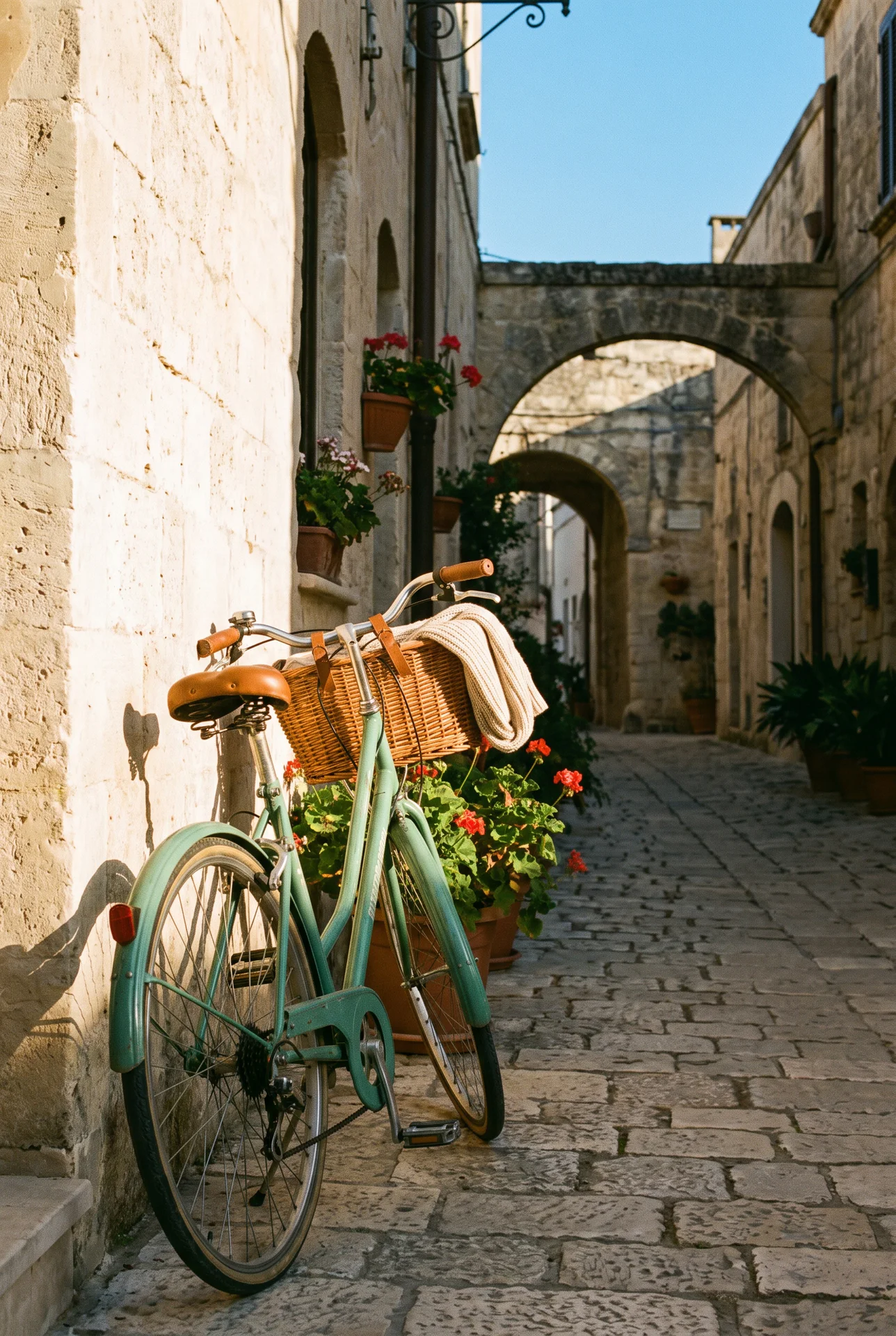 Original Before
Expand, uncrop, and reframe photos with AI-generated content that follows the original scene.
Upload an image, choose a new aspect ratio, and create more room for banners, posts, product layouts, headlines, or a wider composition without stretching the original subject.
Supports JPG, PNG, and WebP. Generated areas can contain imperfect details, so review the result before publishing.
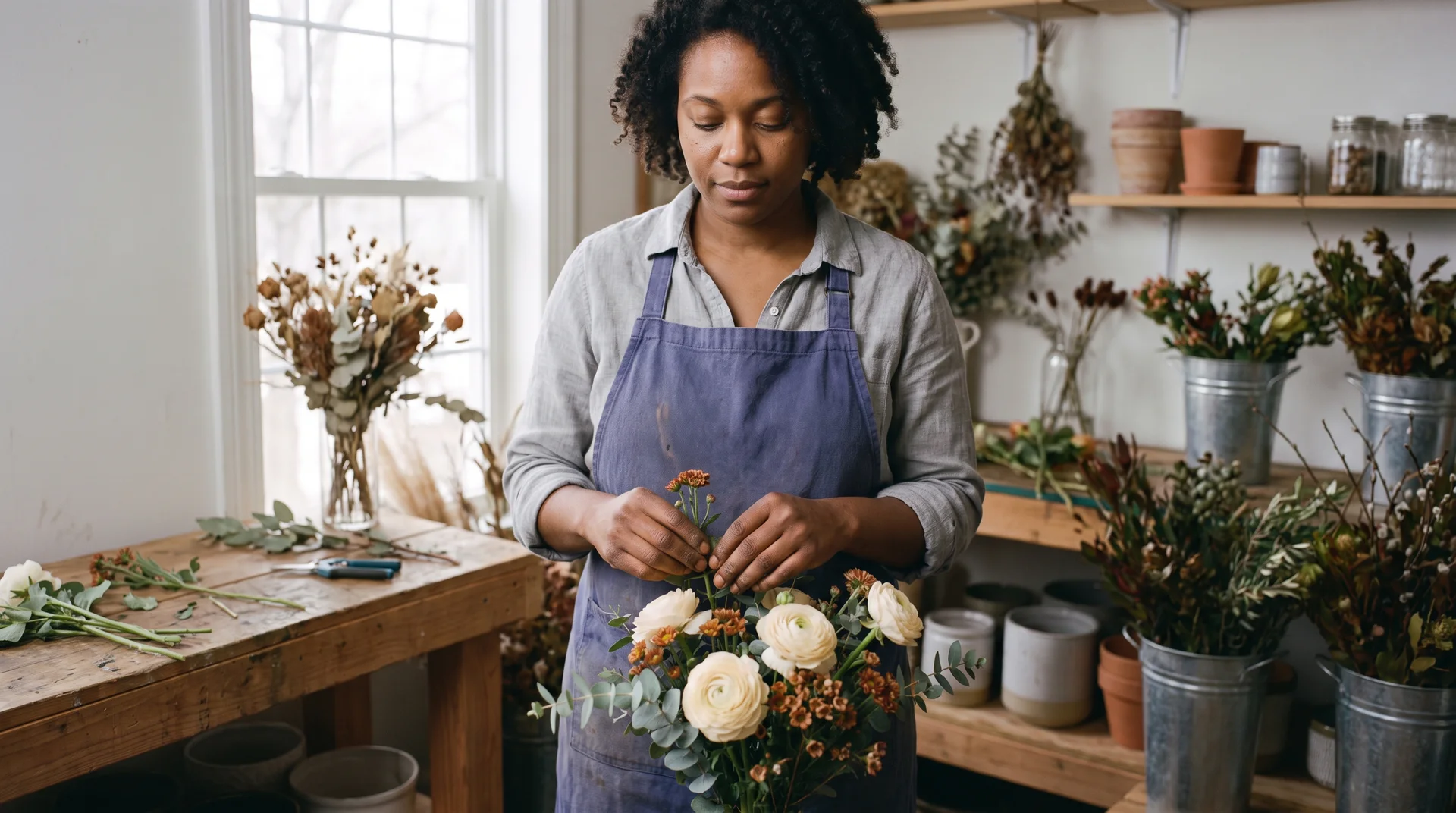
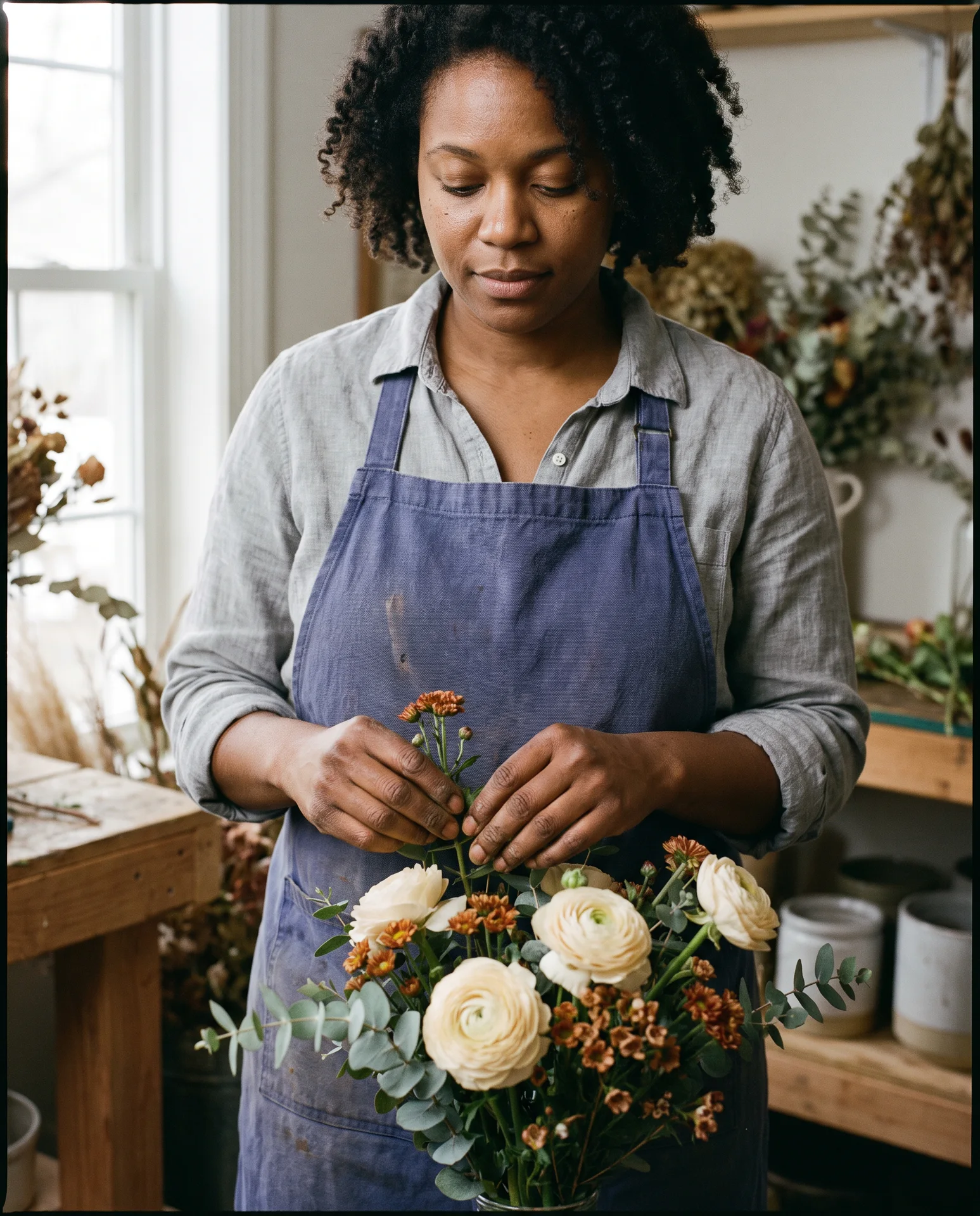
Traditional resizing changes dimensions by scaling, cropping, or adding empty borders. An AI image extender analyzes the visible subject, lighting, colors, perspective, and surrounding details, then generates new content outside the original frame.
This process is also known as AI outpainting or image uncropping. Use it when a photo feels too tight, the subject sits close to an edge, or the source image does not fit the layout you need. For broader edits, continue in the Vizmuse AI photo editor.


Choose a clear JPG, PNG, or WebP image. A sharp source with visible background context gives the model more information to continue.
Choose a square, portrait, landscape, or widescreen format that matches the layout where the final image will appear.
Keep the default instruction for a natural continuation or describe the new setting, lighting, surface, palette, and space you need.
Compare the result with the source and inspect transitions, faces, hands, text, architecture, repeated patterns, and reflective objects.
Save the strongest version or continue editing it in Vizmuse before publishing it at the final display size.
Choose a format available for the selected model, then let AI create the additional scene instead of stretching the original subject.
Prepare product grids, profile images, marketplace cards, and square social posts.
Create vertical editorial layouts, portrait posts, product displays, and mobile-first graphics.
Adapt photos for presentations, editorial layouts, classic displays, and content cards.
Generate extra scene for banners, slides, website heroes, and video thumbnails.
Reframe source images for stories, reels, shorts, and full-screen mobile layouts.
Drag each slider to compare a real source image with the reviewed AI extension generated from it.
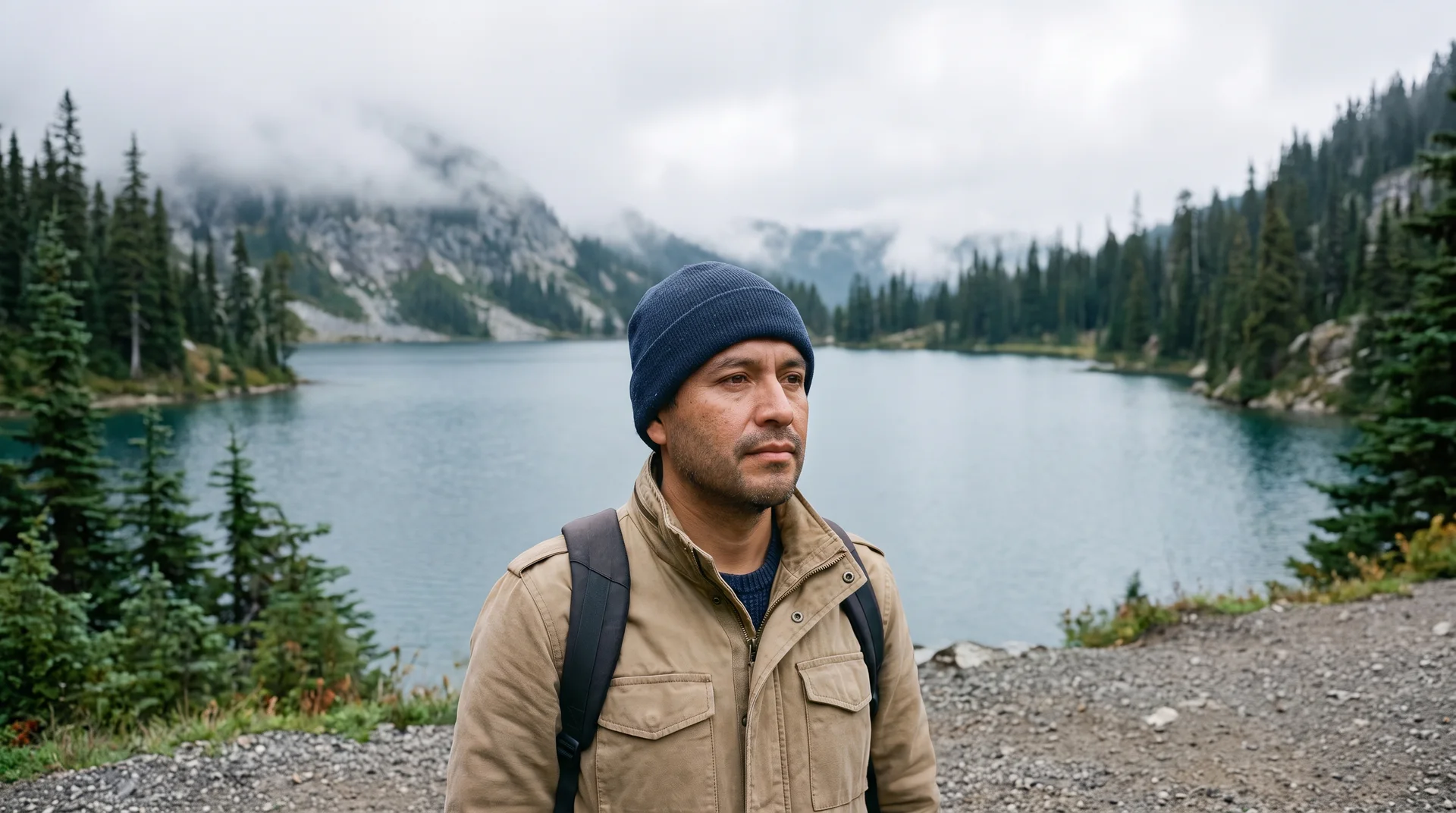
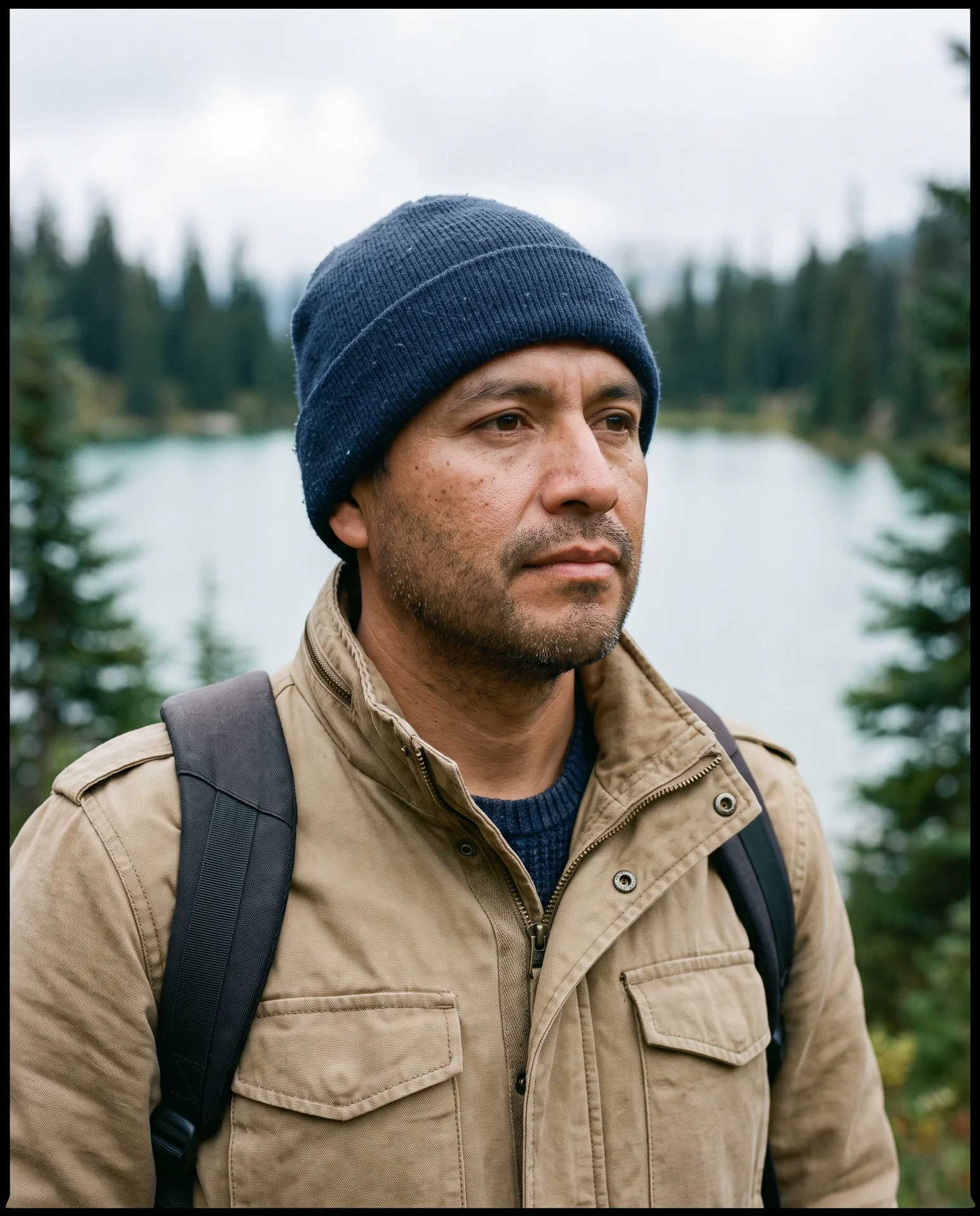
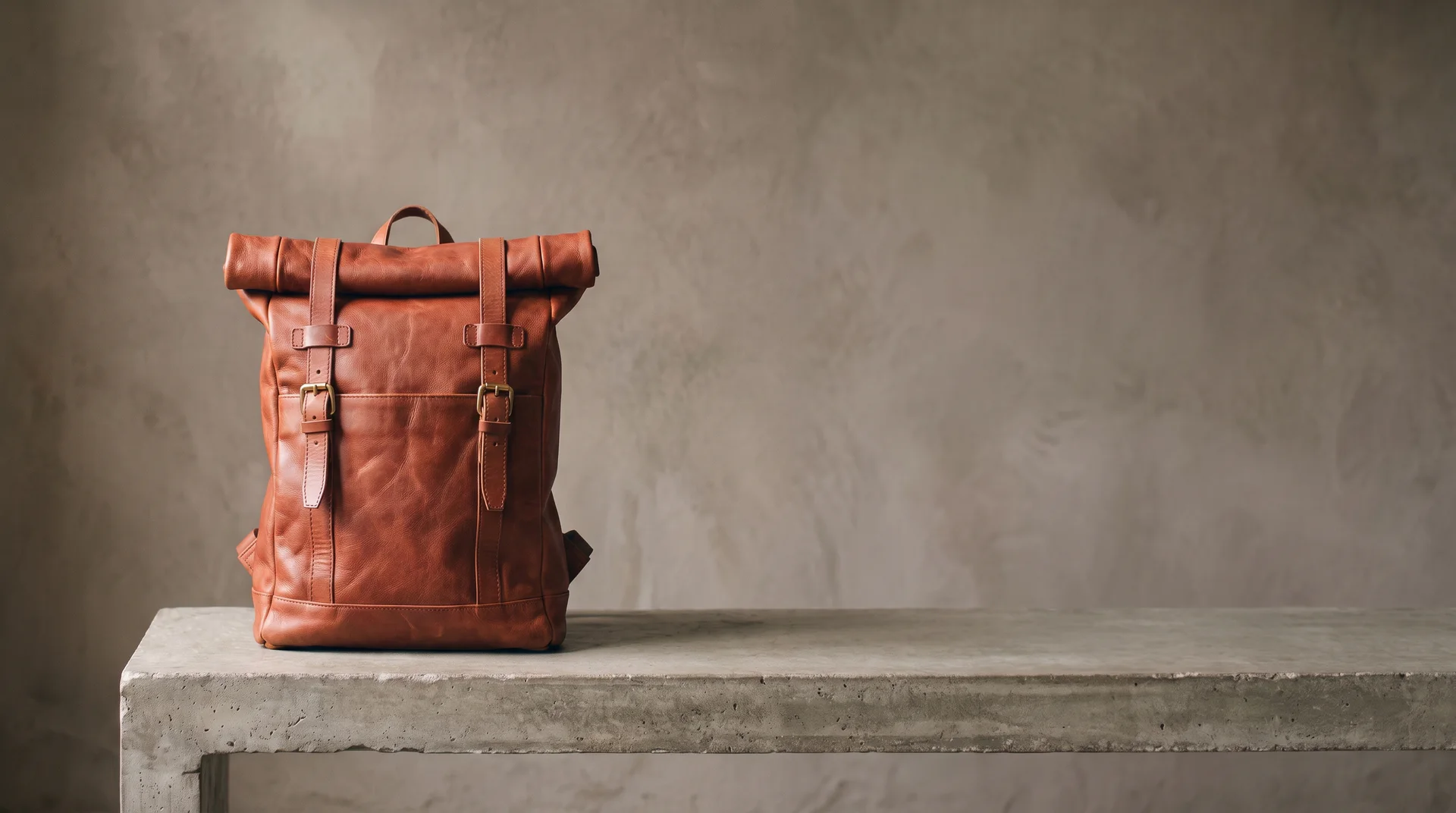
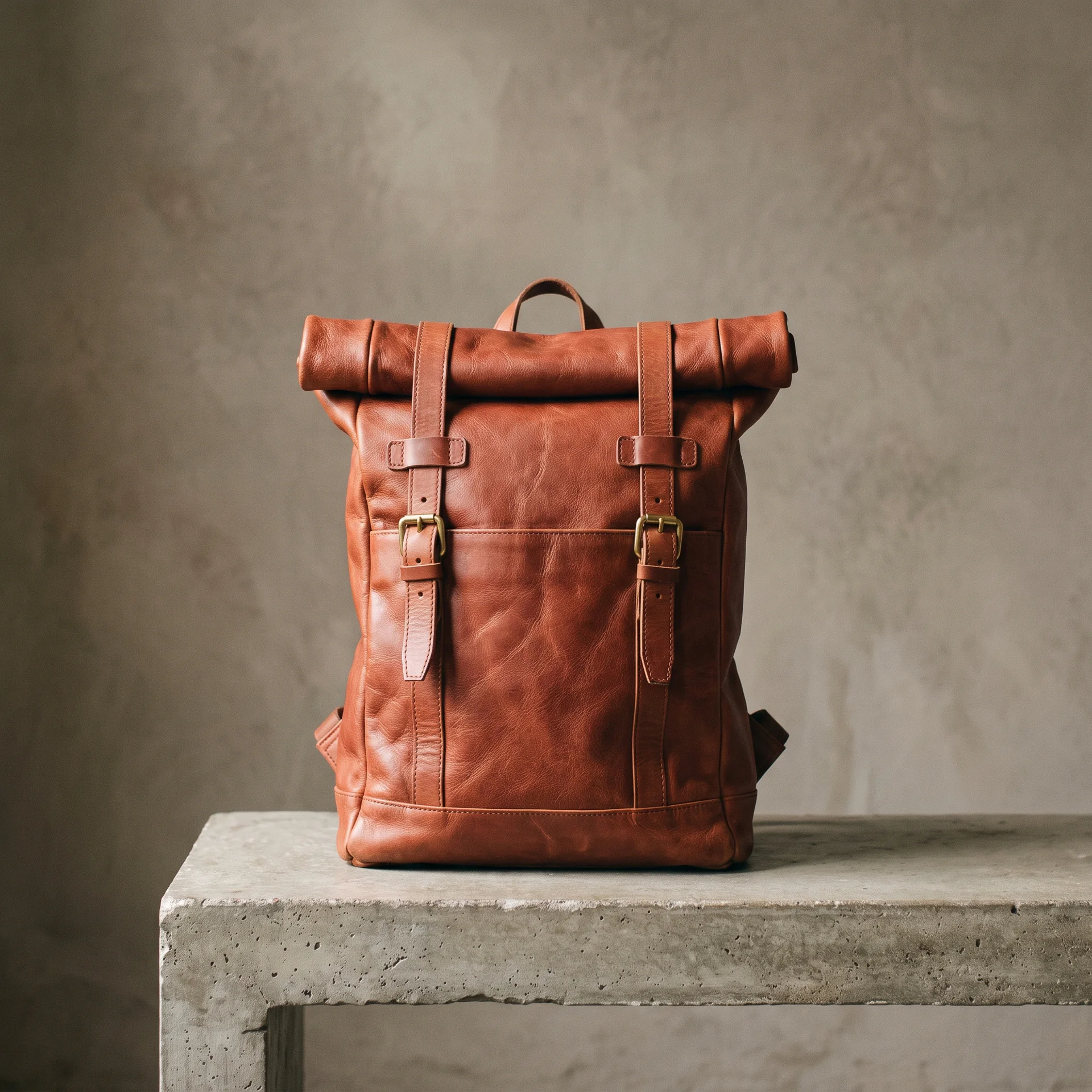
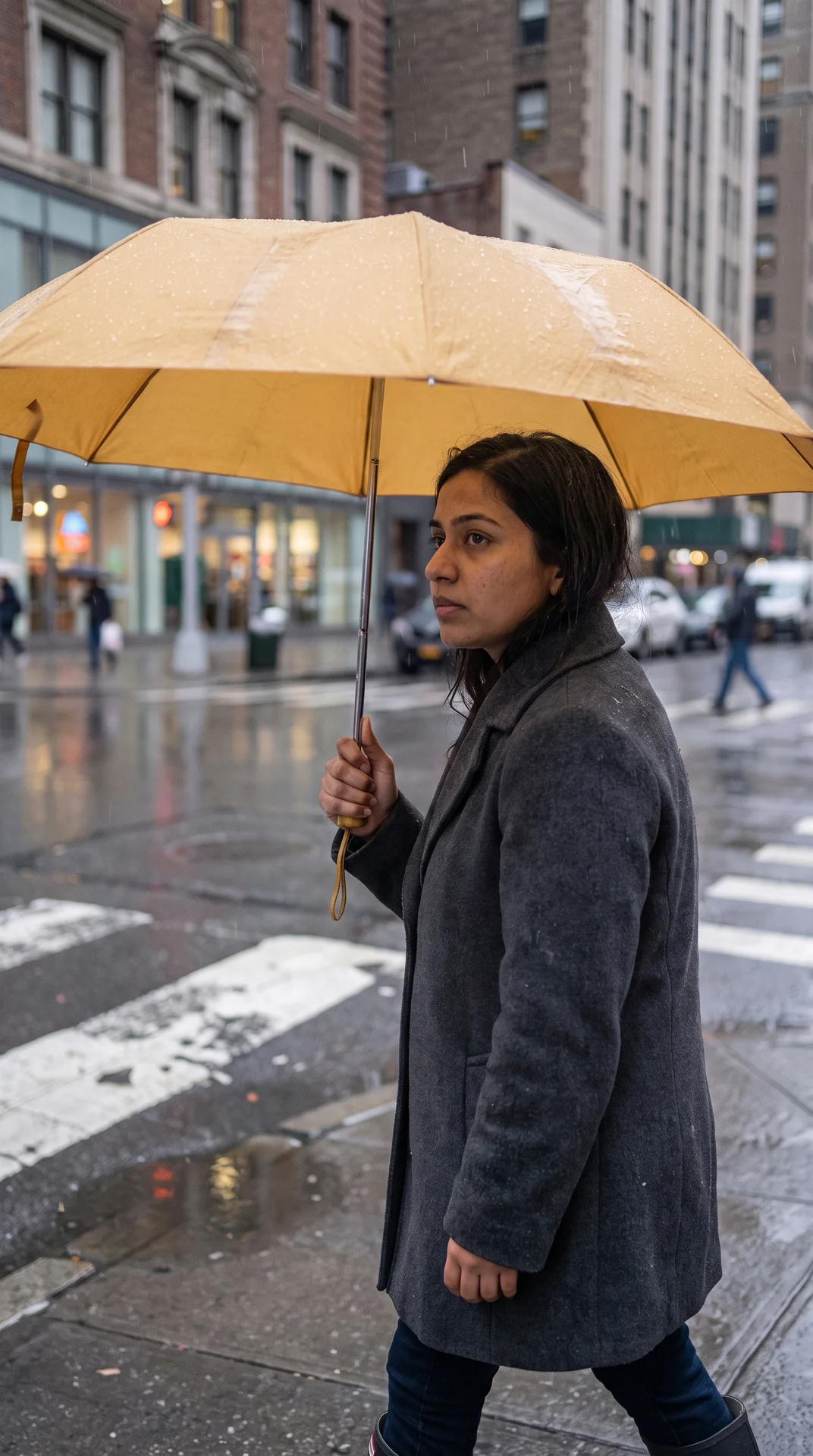
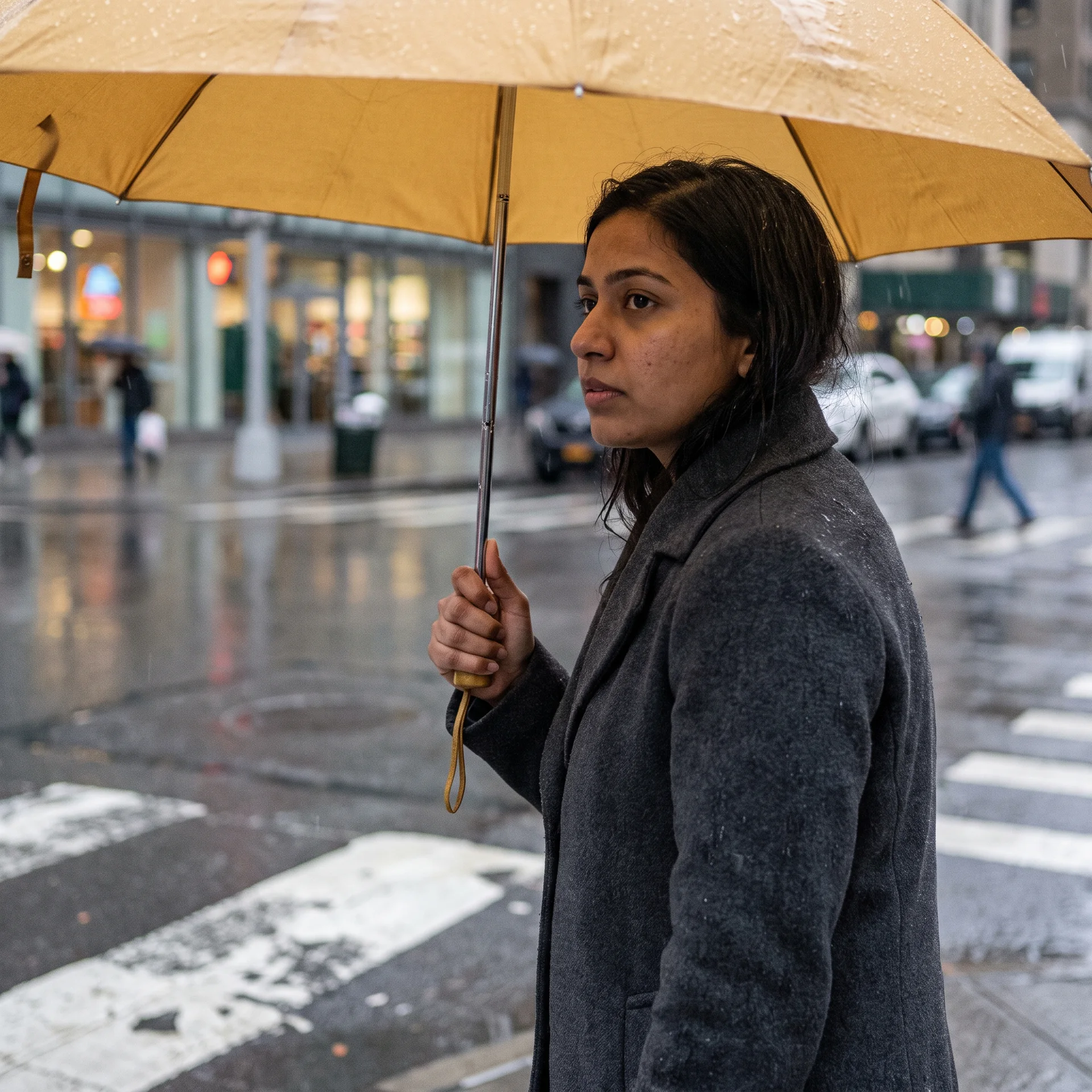
Create more useful compositions from an image you already have.
Add breathing room around a person, product, pet, or object when the original framing feels cramped.
Extend one side of a composition for a headline, logo, price, call to action, or promotional message.
Turn one source into square, portrait, landscape, and vertical versions while keeping the subject visible.
Generate more studio, wall, floor, table, or lifestyle background around a product without enlarging it unnaturally.
Continue illustrations, concept art, landscapes, and generated images beyond their current frame.
Prompt Examples
Describe the new area and the continuity it needs instead of repeating only what is already visible.
Name the surface, wall, light direction, shadow, palette, and space reserved for copy.
Continue the geography, weather, time of day, camera height, and atmospheric depth.
Preserve the product while describing a believable surface and uncluttered layout area.
An AI image extender generates new content outside the existing frame. An image upscaler increases the resolution of pixels already present. Extending changes the composition and canvas; upscaling changes output size and clarity.

Start with the highest-quality source image available and expand gradually when the original contains complex architecture, typography, symmetrical objects, or repeating patterns.

Move from expansion into broader editing, background replacement, prompt analysis, or new image creation.
Upload a photo, choose a new aspect ratio, and generate more space around the original scene for your next layout.
Expand an Image