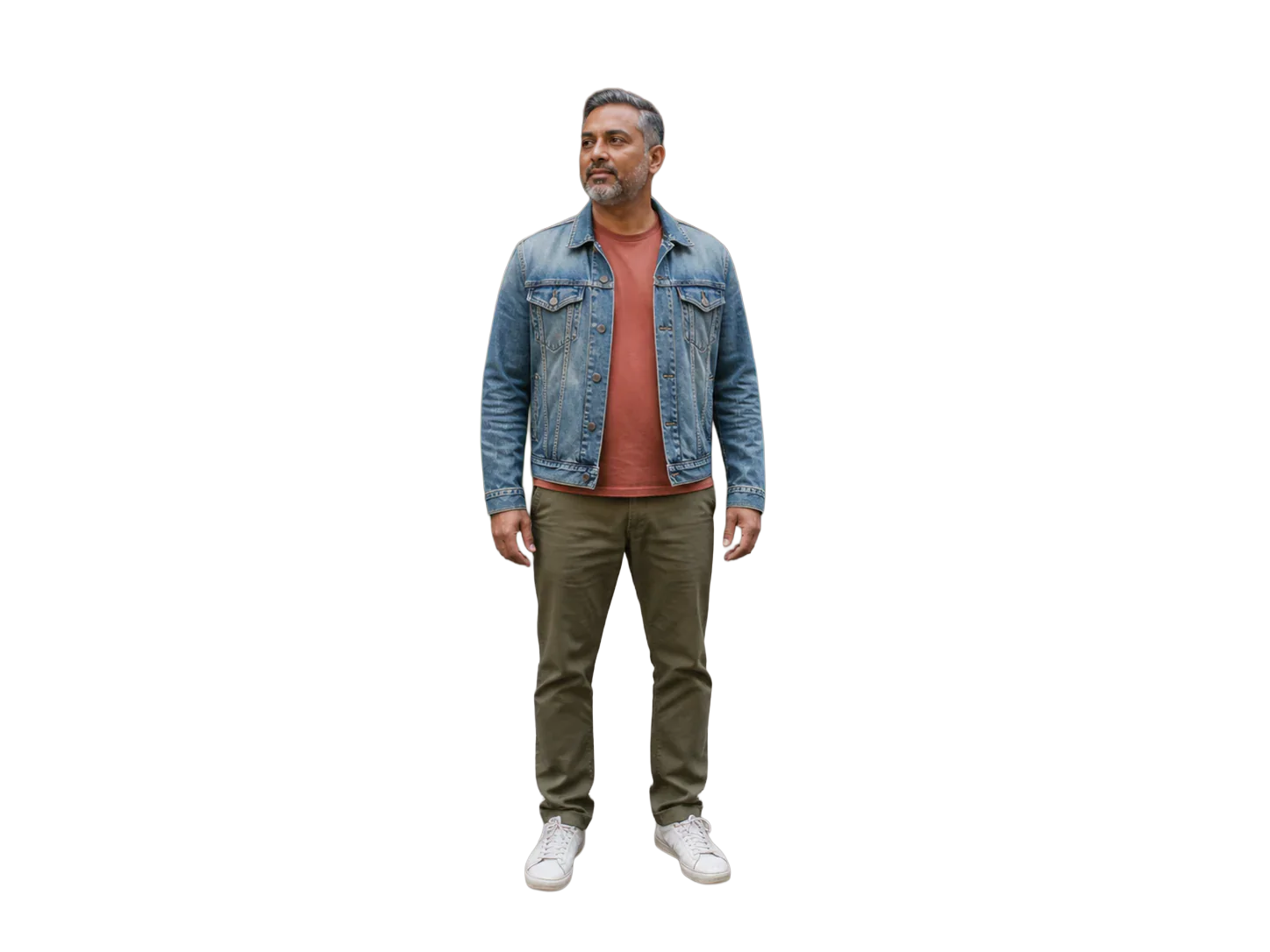

People
🛑Before: Original portrait with a distracting location behind the subject.
✨After: Transparent cutout ready for a profile, thumbnail, or campaign layout.
Remove image backgrounds online and turn people, products, pets, or objects into clean transparent cutouts.
Upload one image for a free background removal or add several images to process them in a visible batch queue at 0.5 credits per image.
Supports JPG, PNG, and WebP. The fixed model is optimized for a transparent PNG result, so no model or output setup is required.


Manual background removal can mean drawing selections around an object, cleaning difficult edges, creating masks, and zooming into small details. A free online AI background remover simplifies that first pass.
Vizmuse analyzes the image to identify the main foreground subject and separate it from everything behind it. Use the transparent cutout directly or continue in the Vizmuse AI Photo Editor.
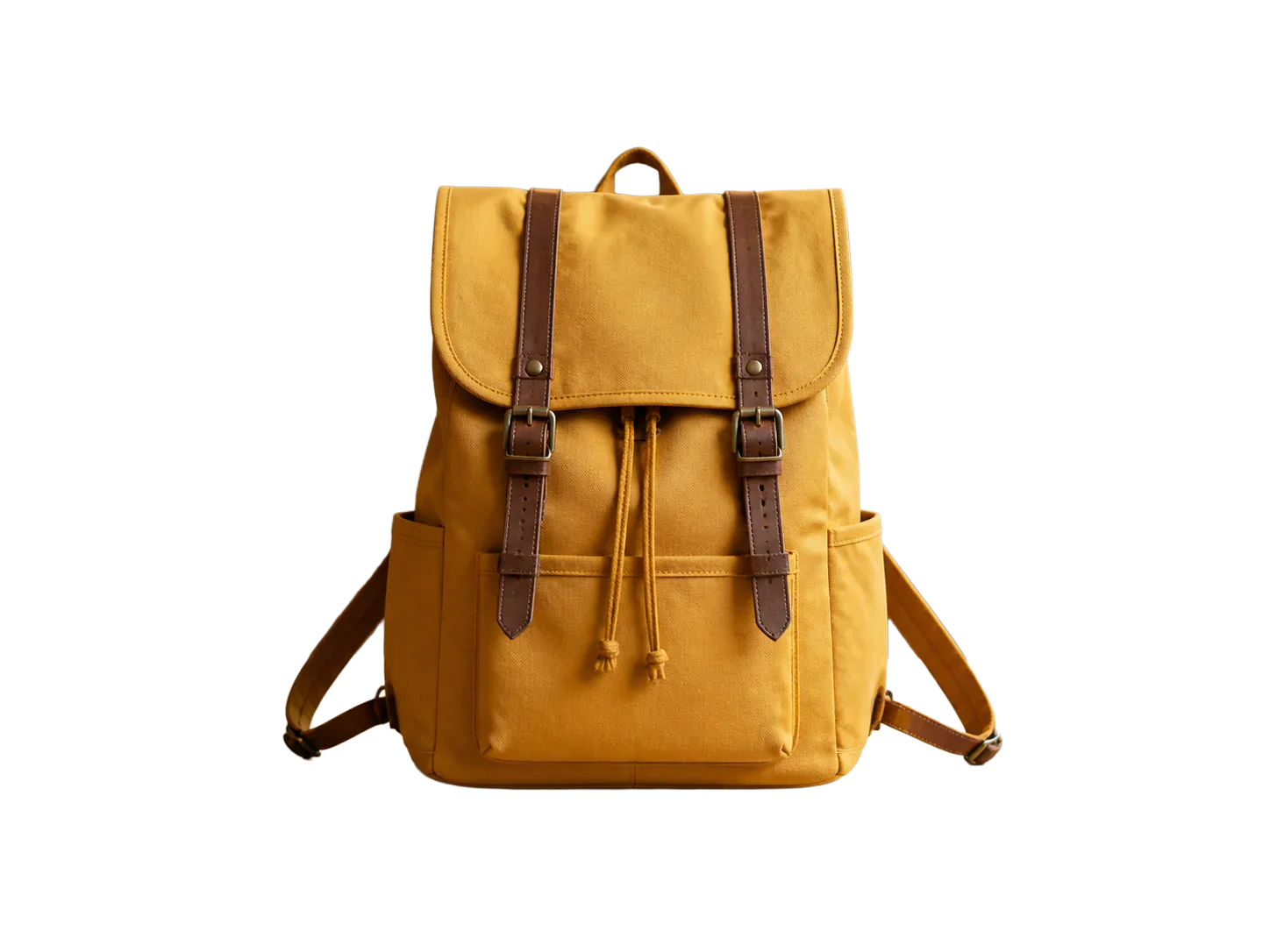
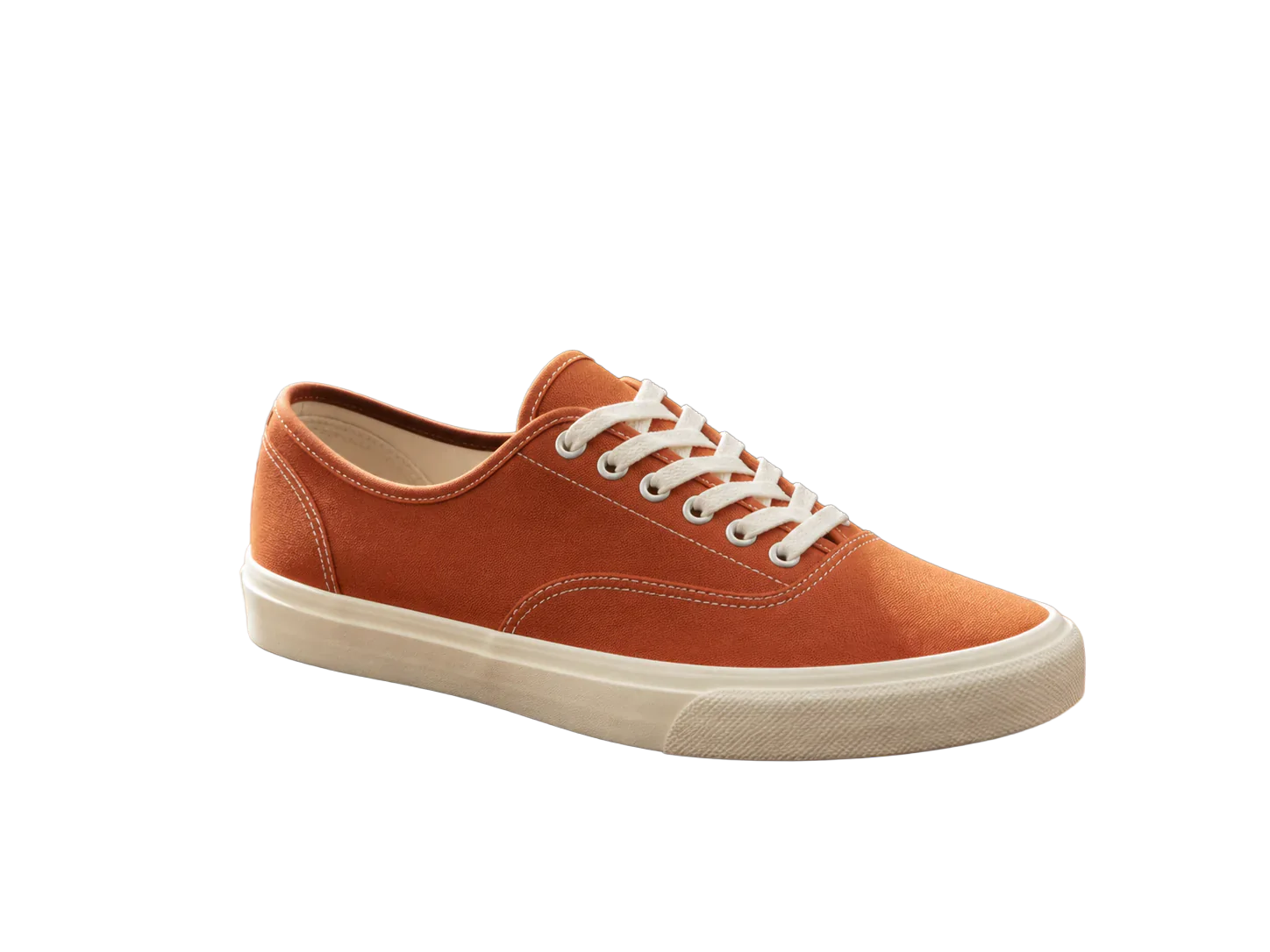
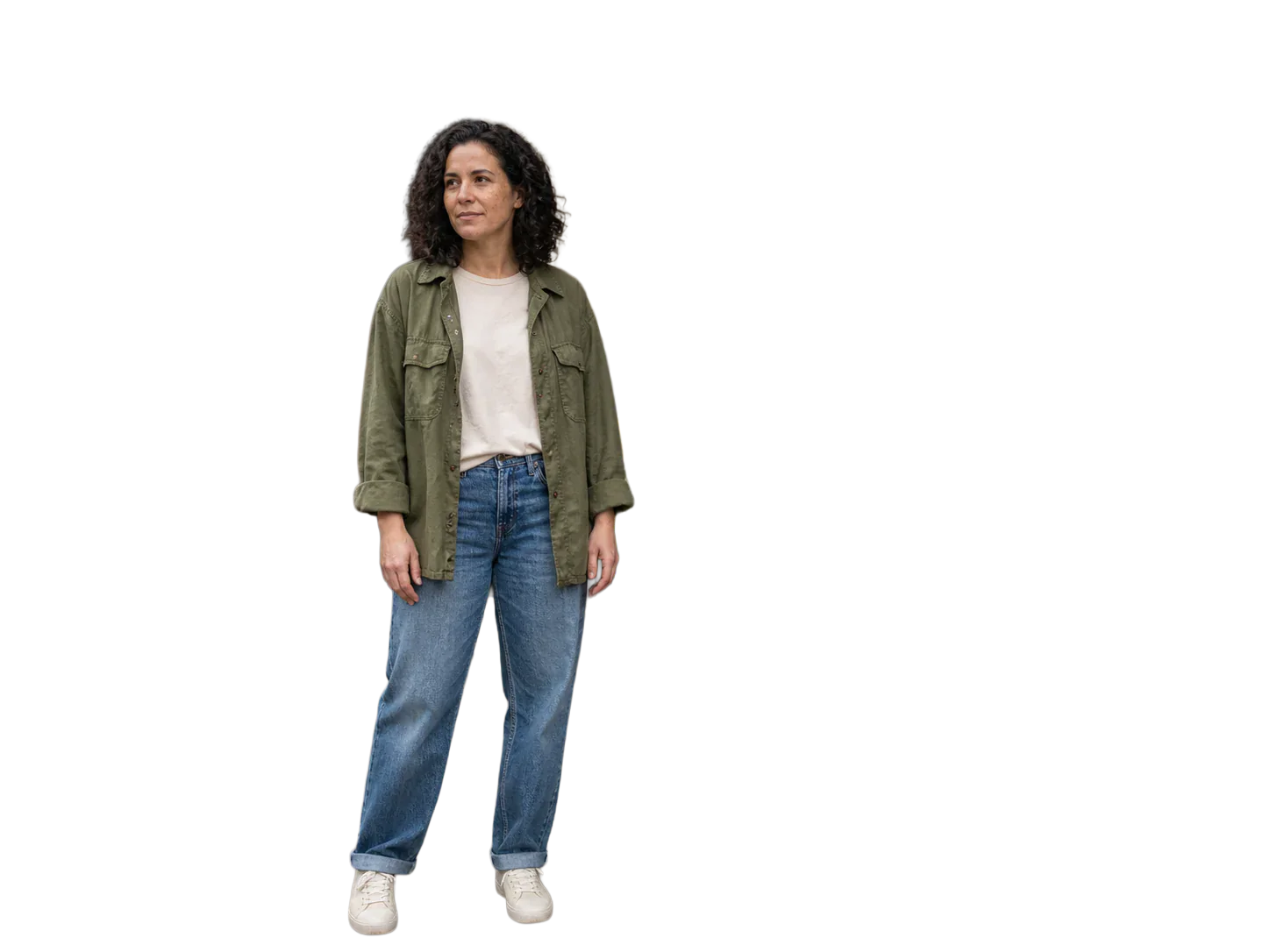
Before and after examples show how people, products, and animals become reusable transparent cutouts. Each comparison is ordered source first, result second.
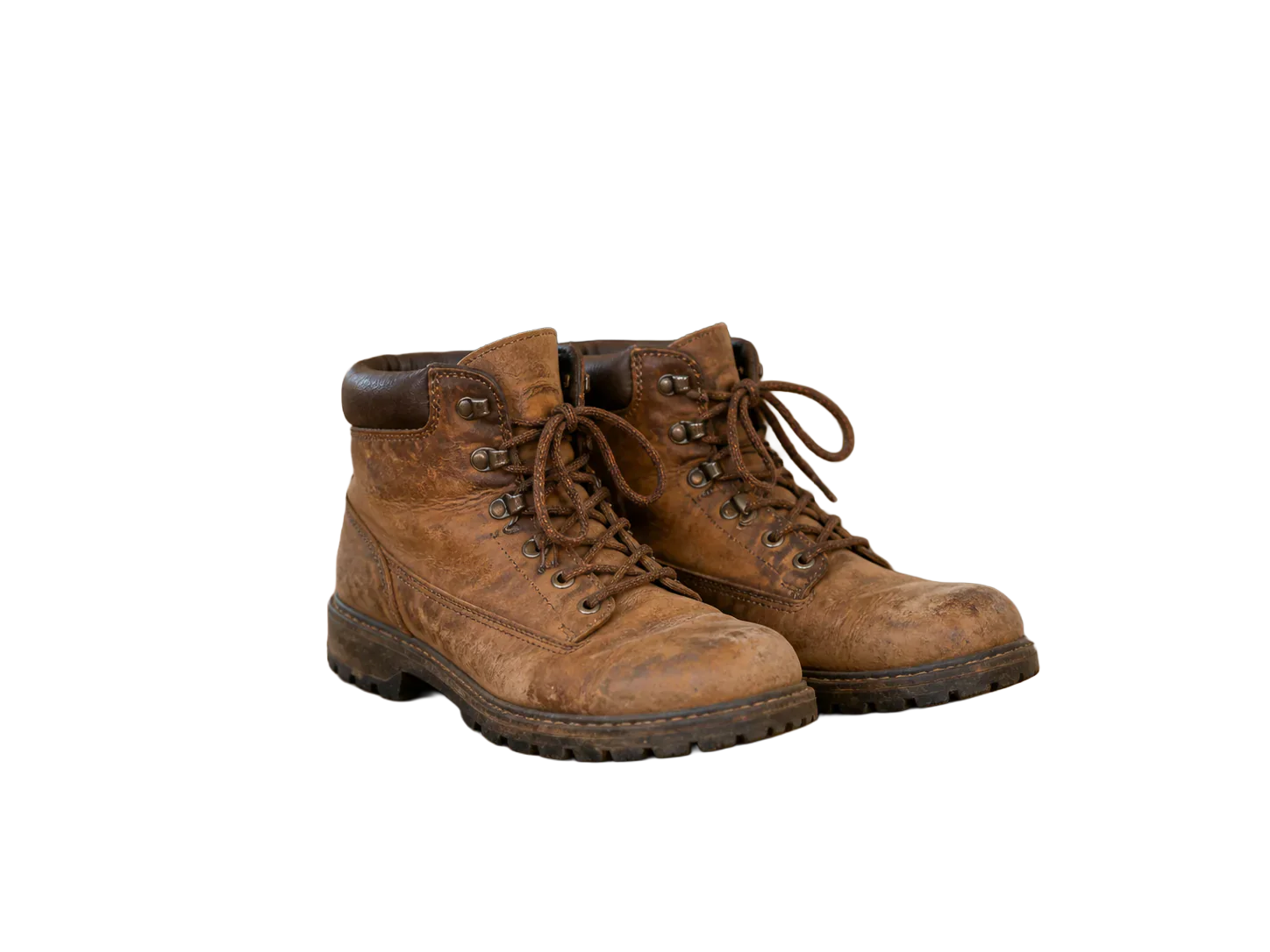
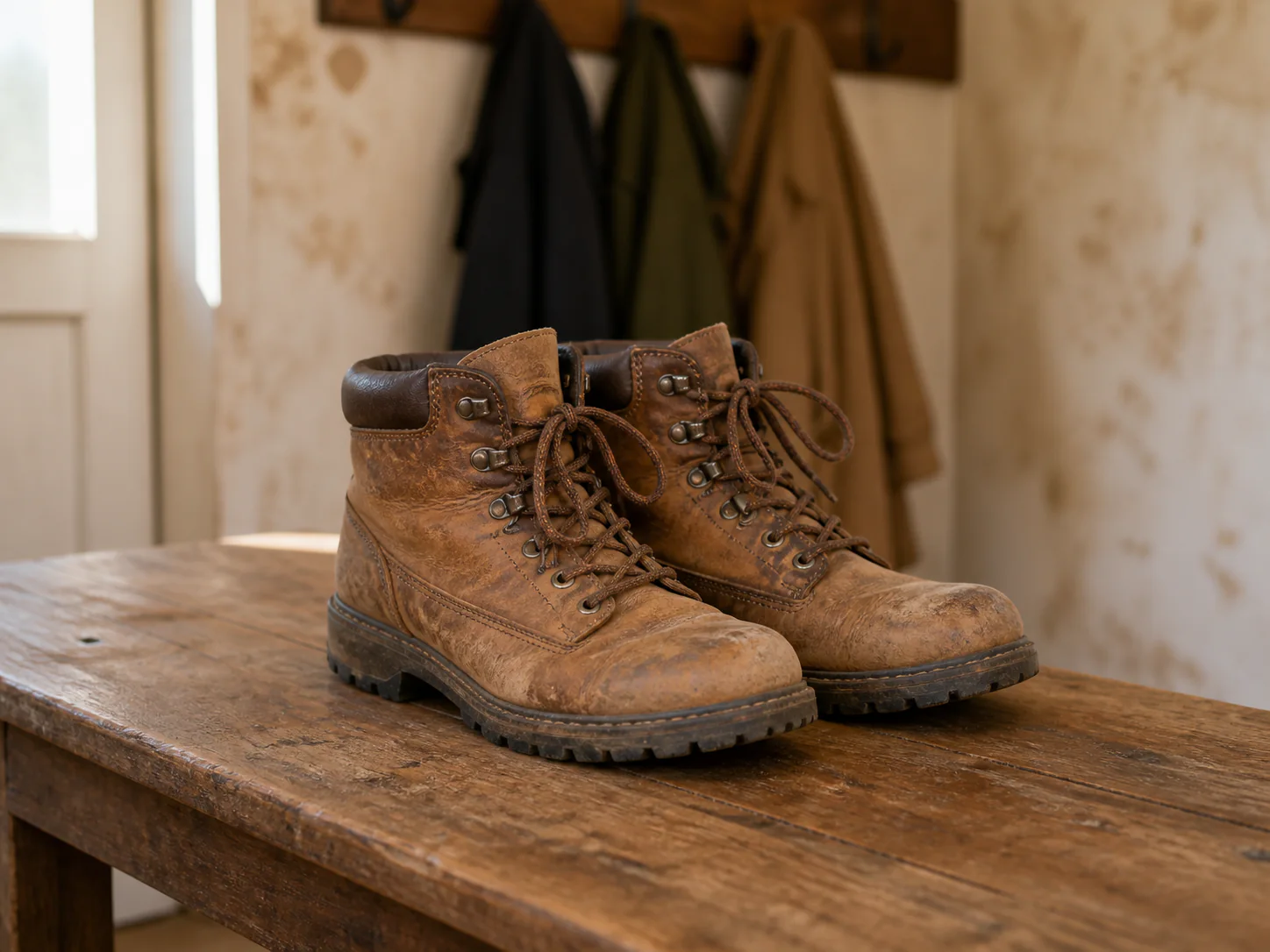
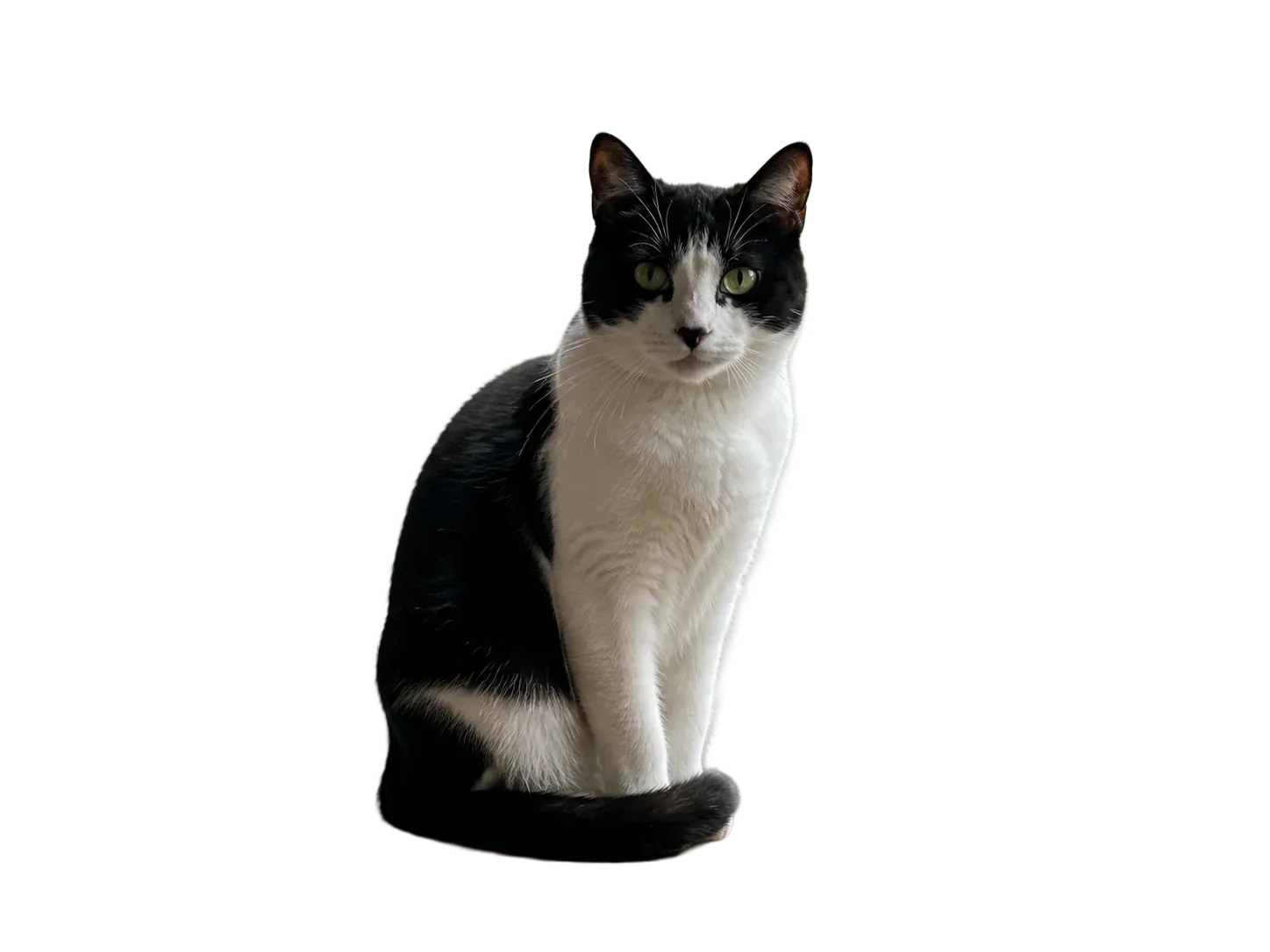


Choose a visible, reasonably sharp JPG, PNG, or WebP image. Upload one image for free or add several images for a batch queue.
The fixed background-removal model detects the main foreground subject and removes the surrounding scene without manual selections or tracing.
Inspect hair, fur, fingers, product edges, wheels, transparent objects, and shadows before using the transparent result in a final design.
Use the transparent PNG directly or continue in Vizmuse when the isolated subject needs a new background, layout, or broader photo edit.
Start with a recognizable foreground subject and let the AI background remover handle the repetitive first pass.
Separate a person from an office, room, event, or outdoor location for a portrait, thumbnail, team page, or social post.
Create product cutouts for e-commerce listings, marketplaces, catalogs, ads, promotional banners, and email campaigns.
Isolate pets and animals for cards, stickers, social graphics, or creative compositions while preserving the main outline.
Prepare vehicles, furniture, accessories, and other visible objects for listings, promotional graphics, or new backgrounds.
Remove a plain background from a visually distinct graphic when the original transparent or vector source is unavailable.
A transparent background removes the pixels surrounding your subject instead of replacing them with another visible color or scene. That makes the isolated image easier to reuse across different layouts.

Background removal and background generation are related workflows, but they solve different problems.
Choose transparency when you want to place the subject into many future designs without removing a permanent background again.
Use a clean white layout for product images, catalogs, documents, marketplace listings, and commercial layouts.
Remove the original background first, then use a separate background changer or generator when you need a completely new environment.
Product photography is one of the most common reasons to remove a background. A clean cutout gives you a reusable product asset that can be placed on white, neutral, branded, seasonal, or promotional backgrounds.
For stores managing many products, consistent background removal can also make a catalog look more organized. Upload a batch to process images in order and review the progress in one stage.
You do not always need a professional studio backdrop to create a clean portrait. A background remover can separate a person from an office, room, outdoor location, event, or other distracting environment.
Images with good separation between the person and the background generally provide the strongest starting point. Hair, hands, and other fine details can be more challenging, so review them before using the final image.
Traditional editors require some combination of selection tools, masks, edge refinement, and manual cleanup. AI background removal starts with a predicted foreground cutout, making the repetitive first pass much faster for quick edits and high-volume workflows.
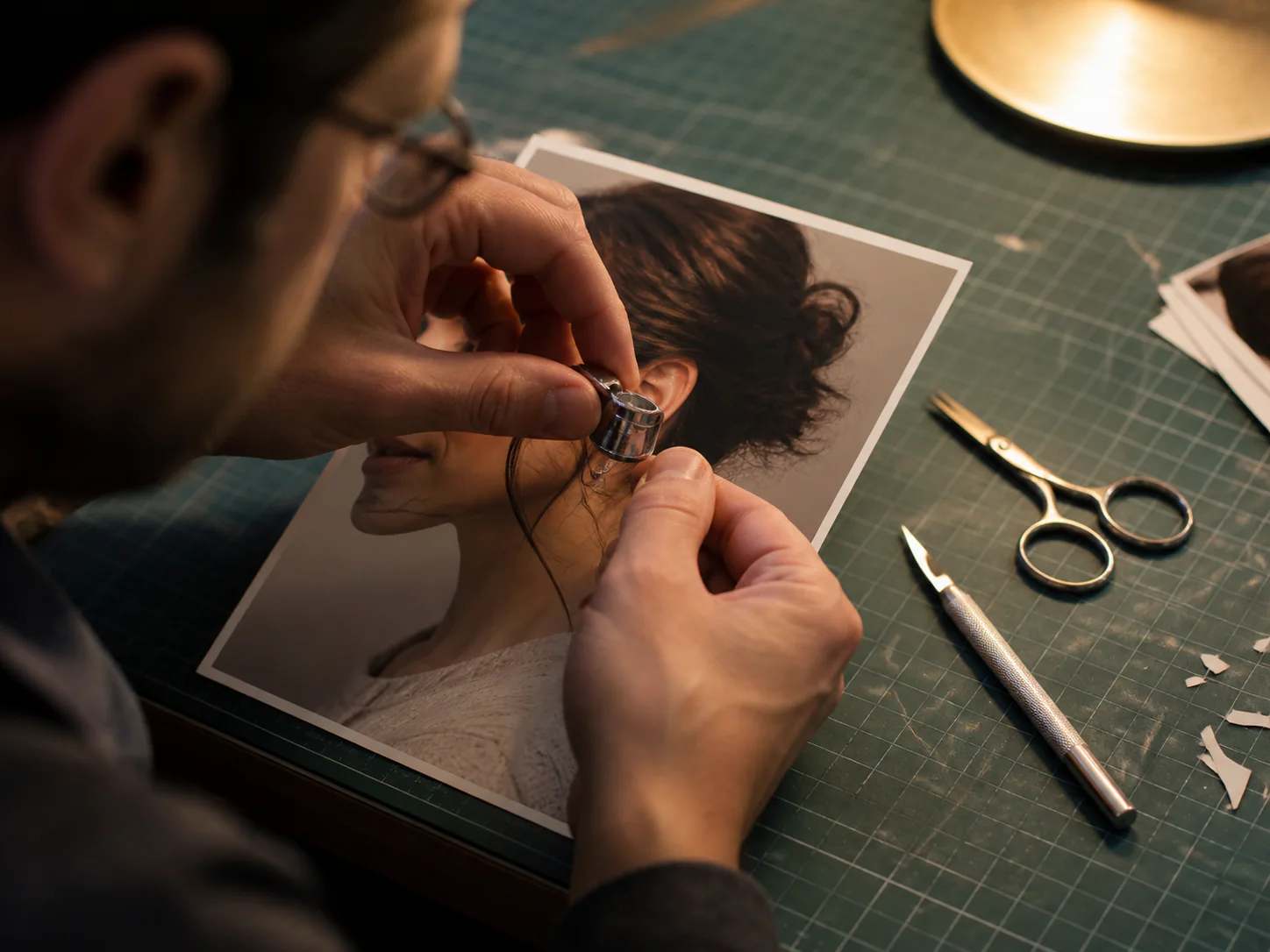
A clear source image gives subject segmentation more useful visual information. Inspect important edges at full size before publishing.
Strong separation between foreground and background usually makes subject detection easier.
Fine details and fingers can be lost or trimmed when the source is blurry or low contrast.
Look for missing corners, transparent areas, wheels, spokes, reflections, and contact shadows.
Glass, smoke, veils, and similar materials can create unusual artifacts that deserve a closer look.
For important commercial assets, judge the cutout at full size rather than only from a small preview.
Removing a background often begins a larger editing workflow. After creating the cutout, you may want to adjust the image, create another composition, improve its presentation, or prepare it for a particular marketing channel.
Move from background removal into the Vizmuse AI Photo Editor when the isolated subject needs broader visual editing.

Remove the existing background first, then move into the next editing task when your composition needs more work.
Upload one image for free or add a batch, isolate the subject, and turn it into a reusable transparent cutout with Vizmuse.
Upload an Image