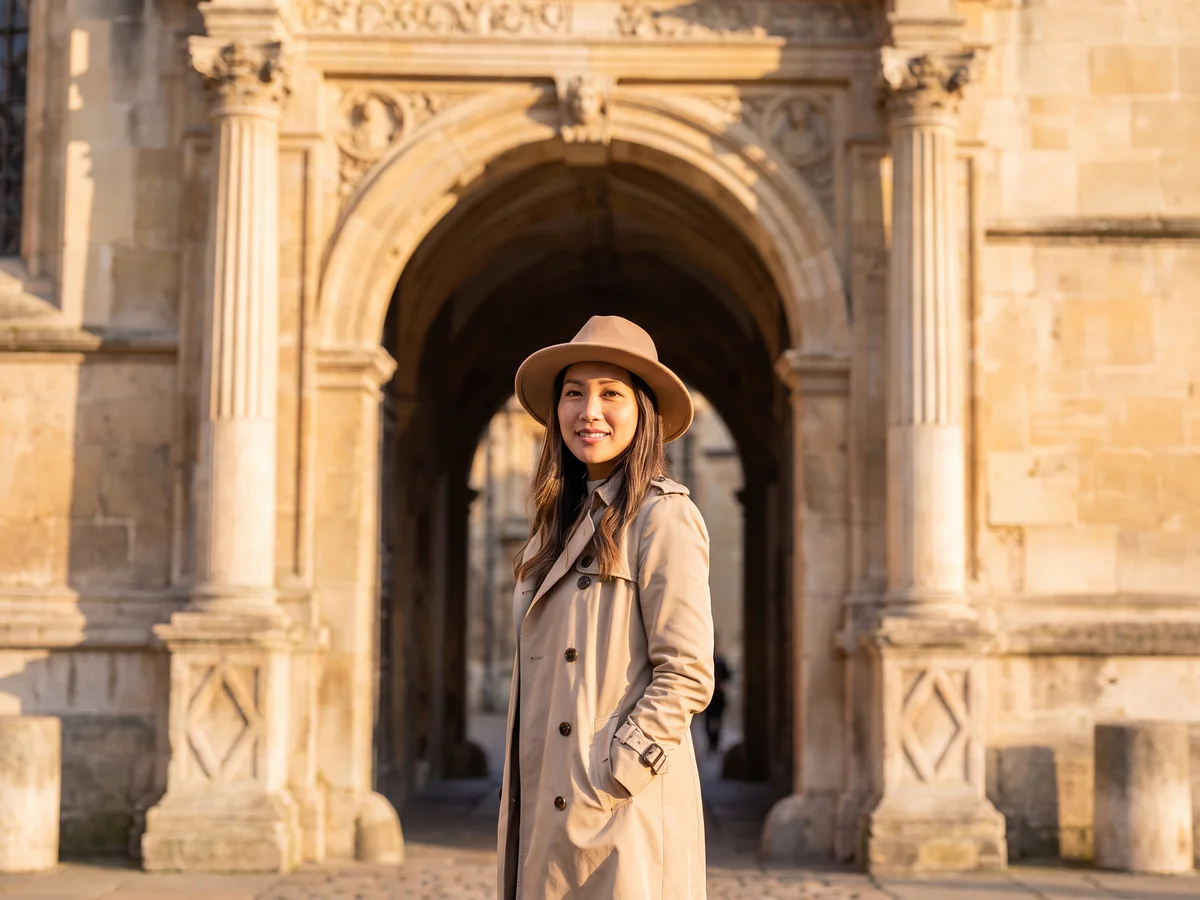
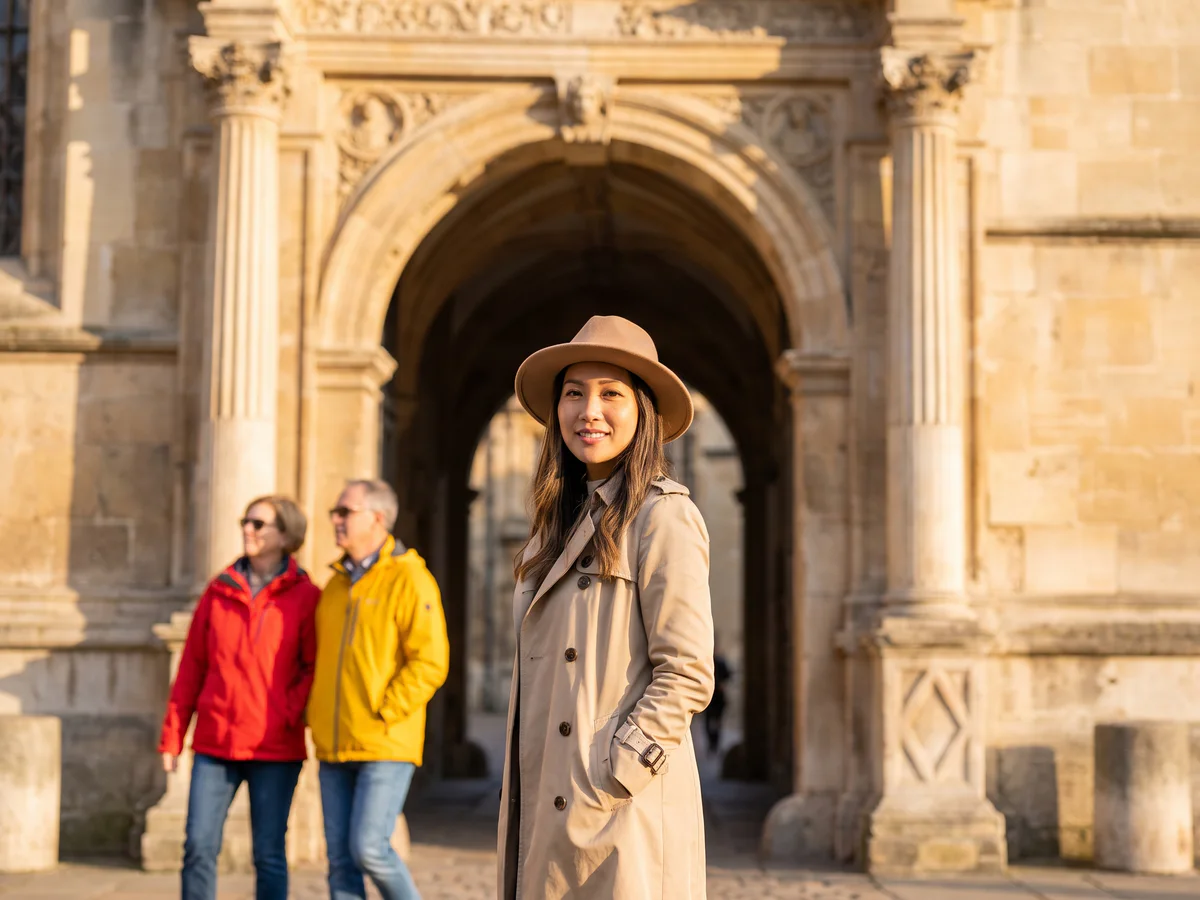
Remove a Person from a Travel Photo
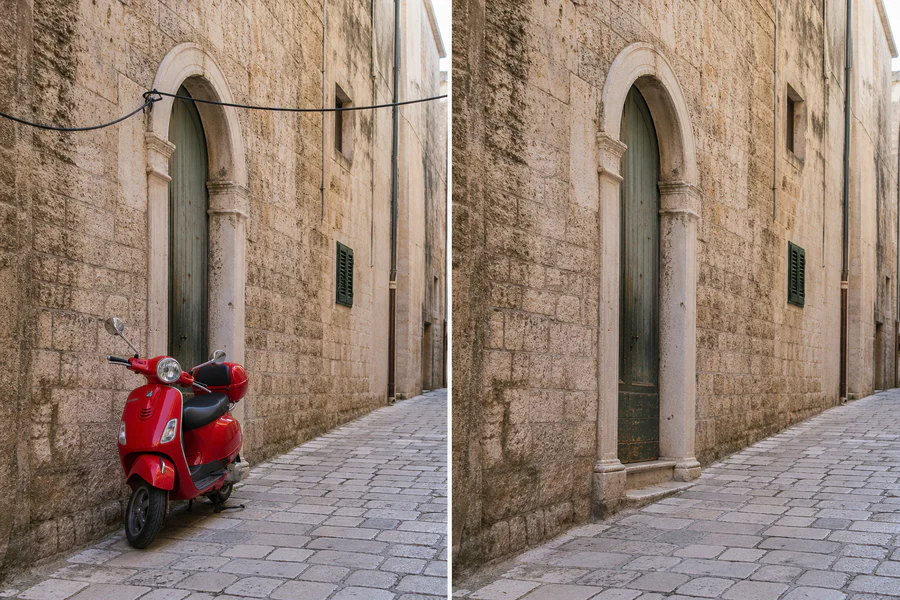
Remove a background person while keeping the travel scene and main subject intact.
Move your cursor over the preview to compare the original scene with a cleaned result, or choose a starter below.
Removed AfterOriginal BeforeClean up photos without complicated editing. Upload an image, select or describe the object you want to erase, and let Vizmuse rebuild the area so the result looks natural.
Use the AI object remover for distracting people, cables, signs, shadows, small props, skin blemishes, background clutter, and other unwanted details.
For the best result, select the full object and include a small margin around its edges. Large objects, complex patterns, reflections, and heavily covered backgrounds may need a second pass.
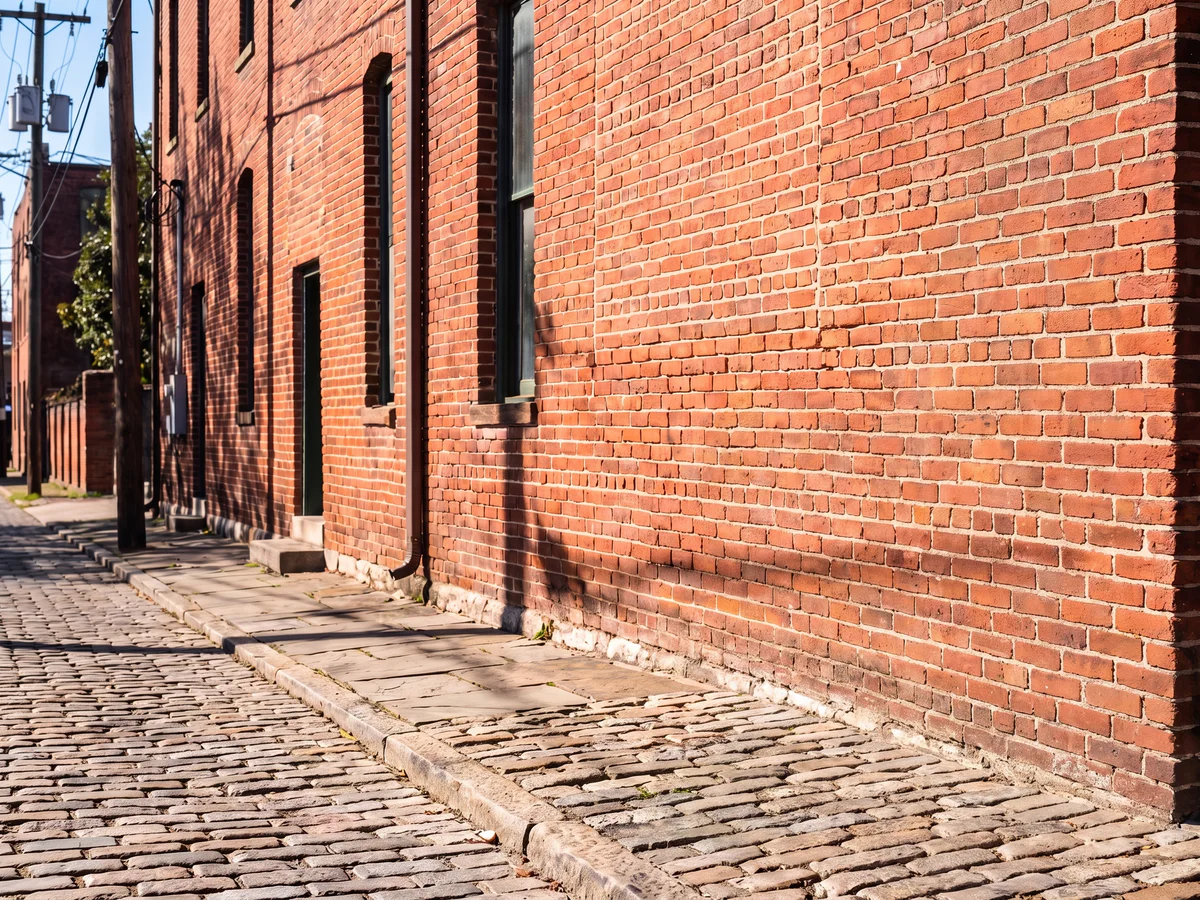
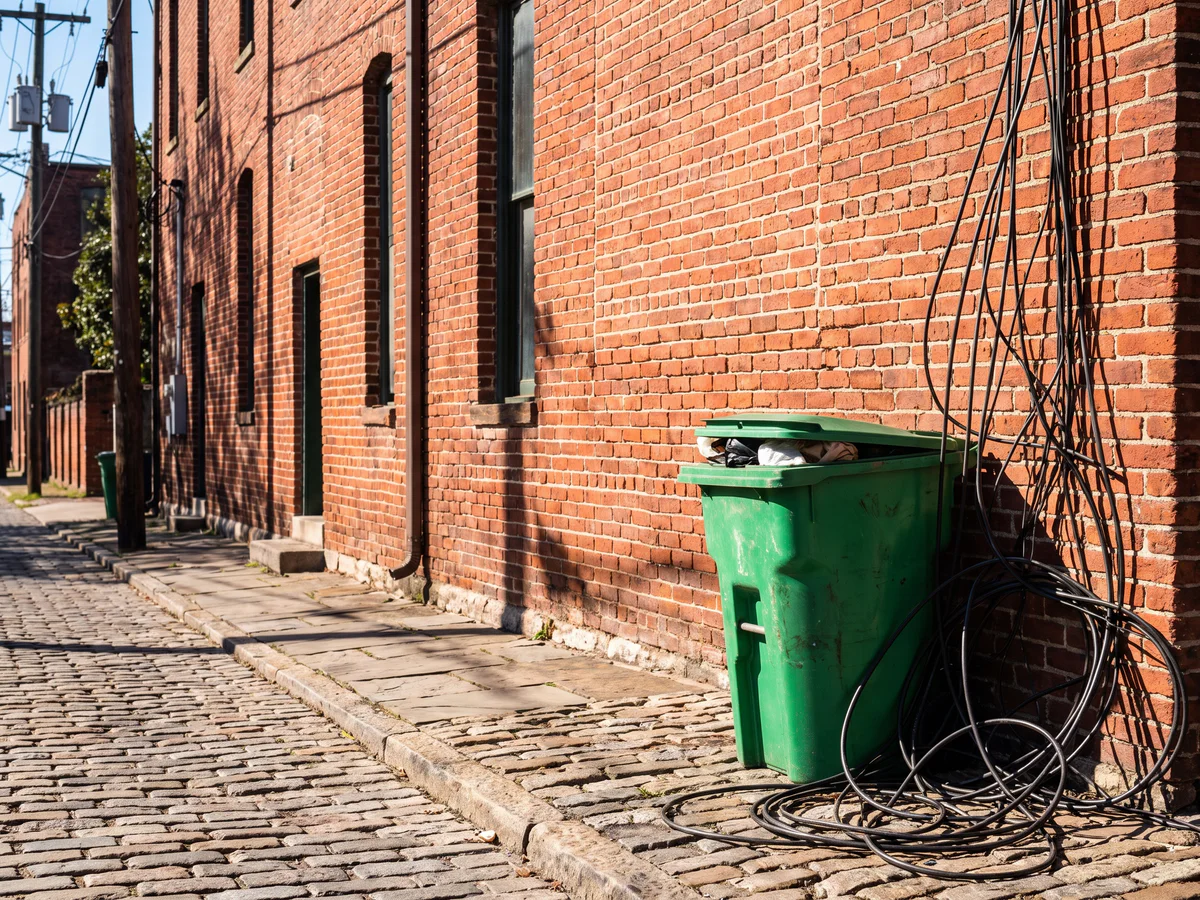
Remove one unwanted object and preserve the visual direction of the original photo. Drag the slider to compare each original with its cleaned result.
Remove a background person while keeping the travel scene and main subject intact.
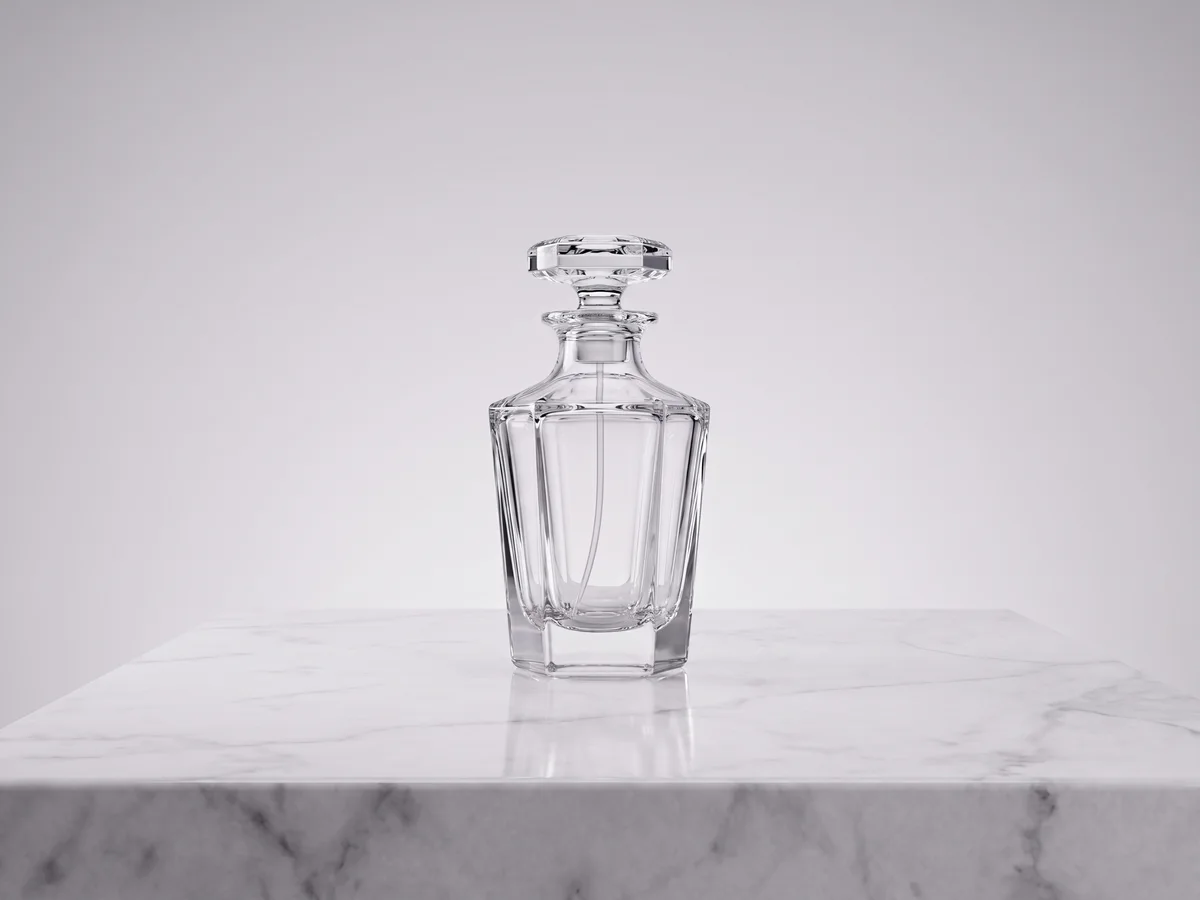

Erase an unwanted prop or small imperfection without changing the actual product.
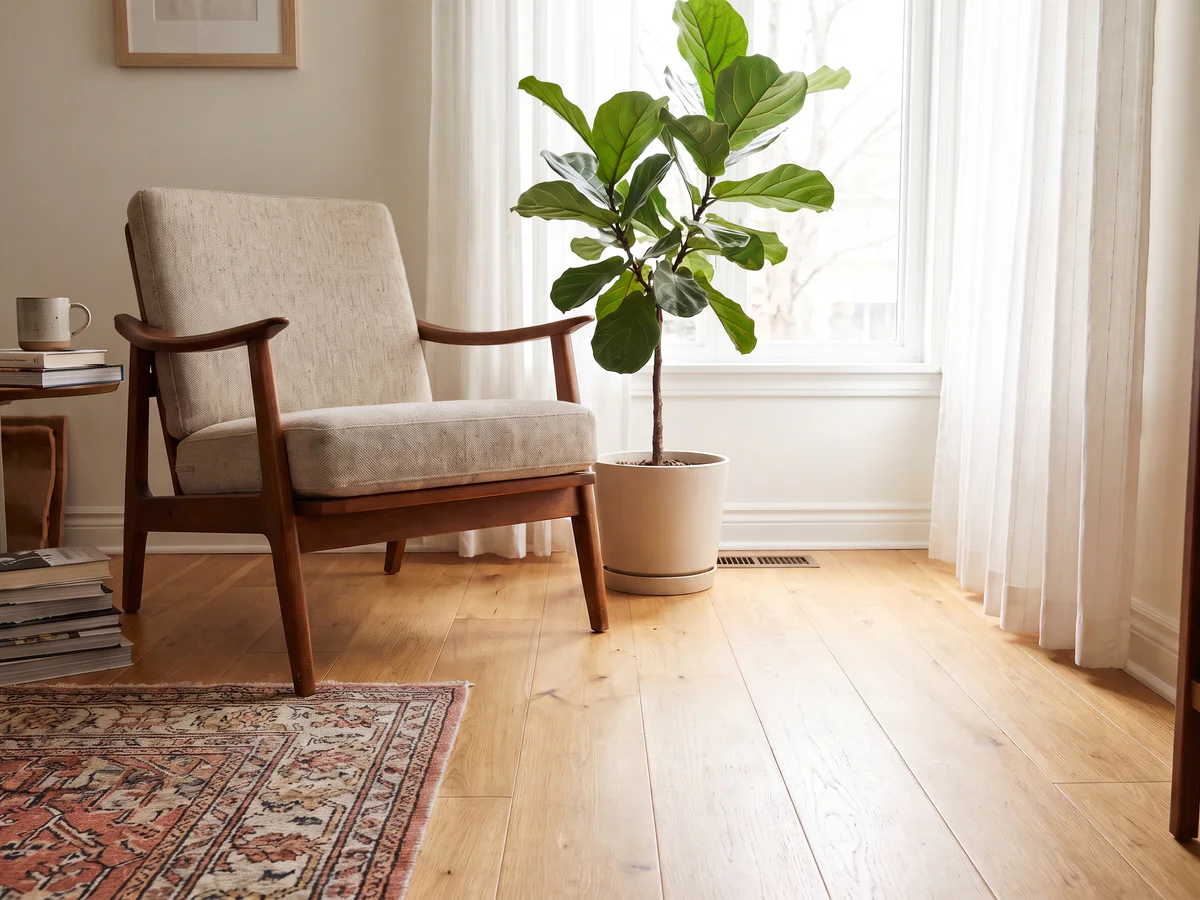
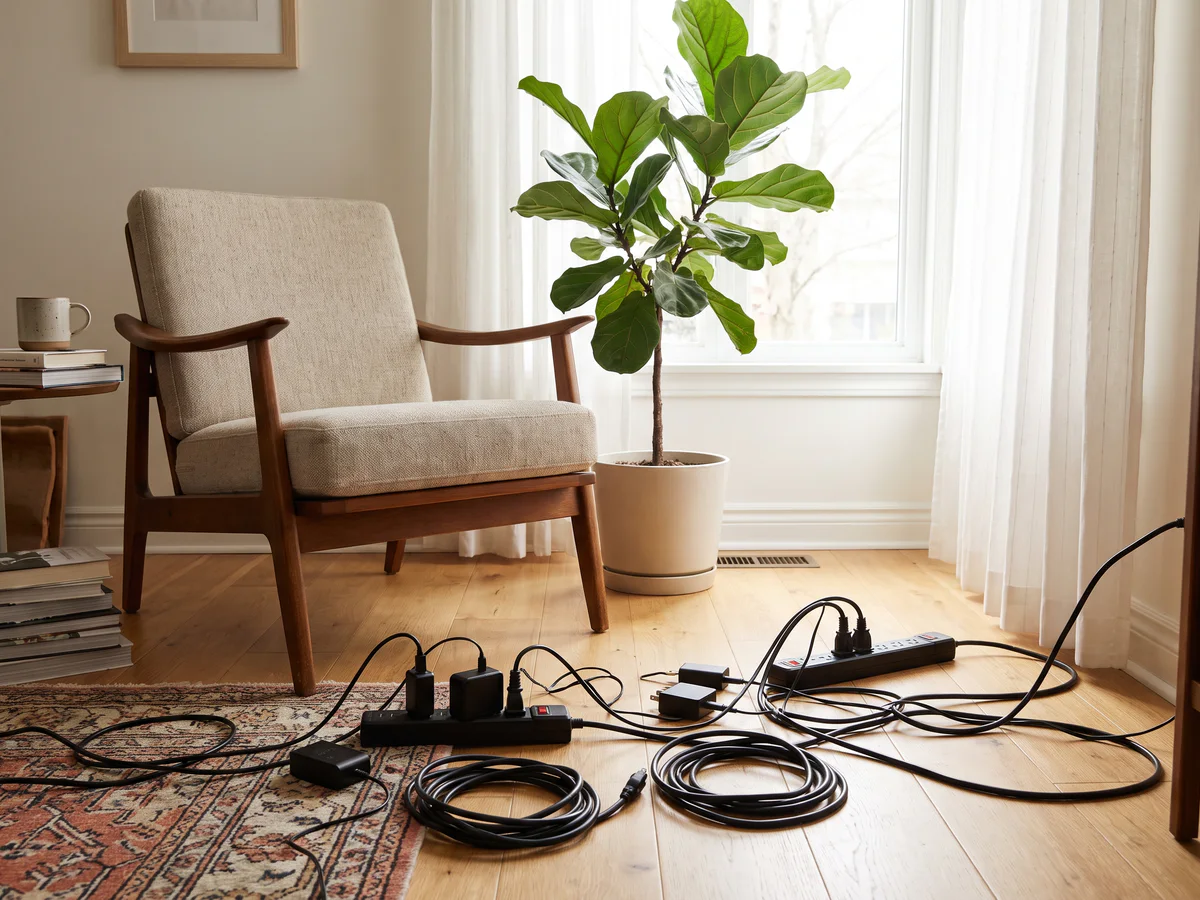
Clear cables, signs, bins, or small distractions from a lifestyle or property image.
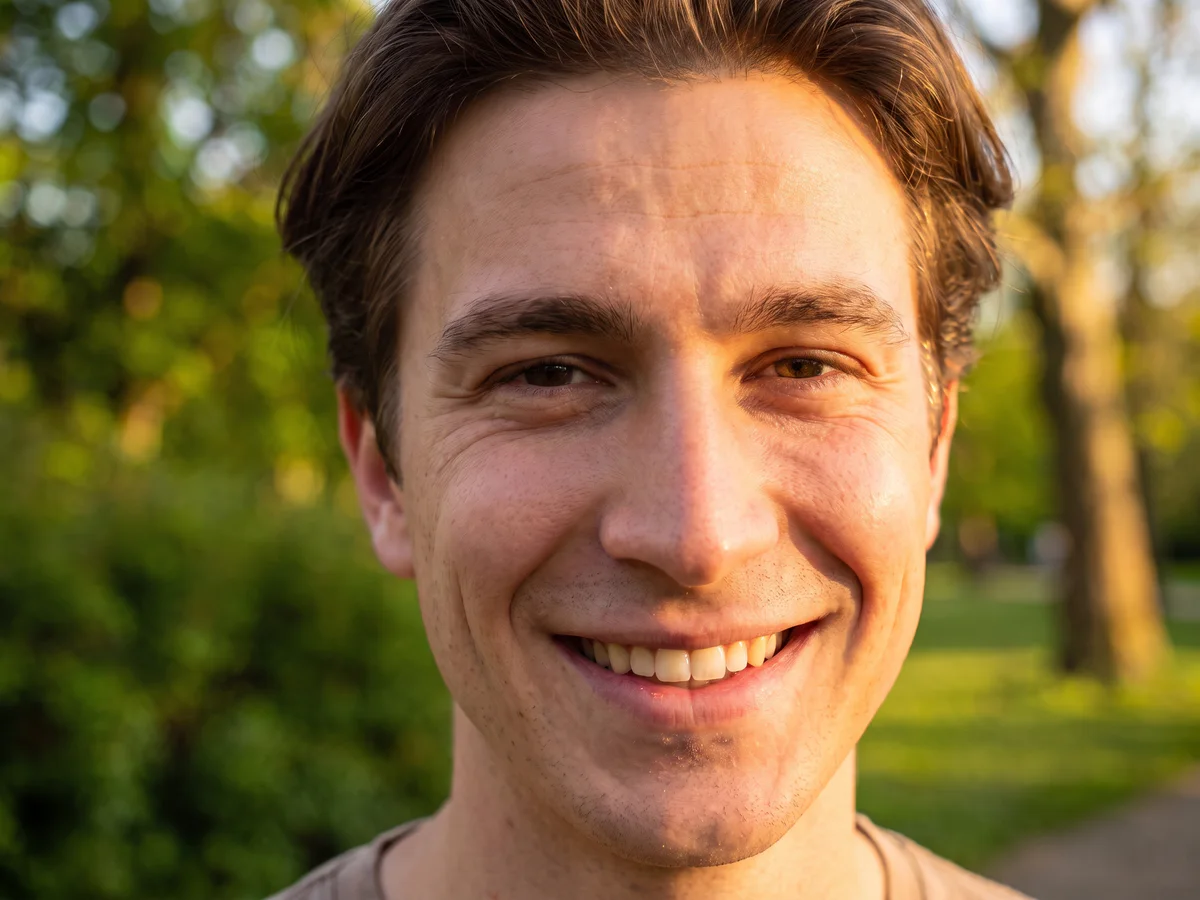

Use a smaller brush for loose hairs, spots, fabric marks, or other minor distractions.
A good photo can be spoiled by one small distraction. A stranger may appear behind you, a cable may cross a product shot, or an unwanted item may pull attention away from the subject. Traditional editing tools often require layers, cloning, and careful manual retouching. Vizmuse simplifies that workflow.
The AI object remover analyzes the selected area together with the surrounding colors, lighting, texture, and perspective. It removes the marked object and generates replacement details that fit the rest of the image. Instead of leaving a blank patch, the tool attempts to reconstruct the background for a cleaner, more consistent photo.
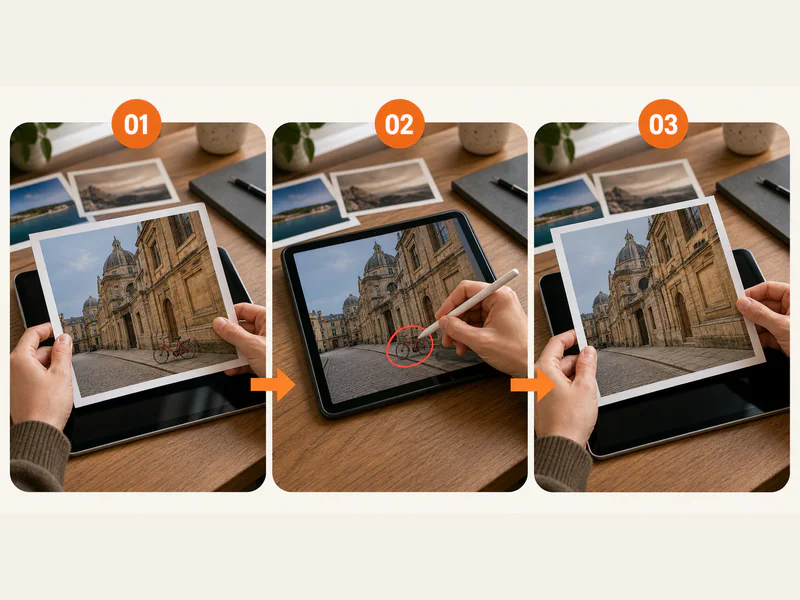
Choose the image you want to edit. Clear, well-lit photos usually provide more visual information for the AI to work with.
Brush over the object, person, text, or distraction you want to remove. Describe the target clearly when prompt-based guidance helps.
Vizmuse processes the selected area and fills it using details from the surrounding scene. Review the result and refine the selection when needed.
Save the edited image in the available output format for a social post, product listing, presentation, profile, or creative project.
Target a specific unwanted detail while keeping the rest of the photo intact.
Remove photobombers, tourists, passersby, or isolated figures that distract from the main subject when the background is visible elsewhere in the image.
Clean up trash bins, cables, poles, signs, furniture, props, or small items in travel photos, property images, lifestyle photography, and everyday snapshots.
Erase dust, small packaging defects, support props, unwanted reflections, or background items while keeping the actual product accurate.
Remove temporary spots, loose hairs, fabric marks, or minor distractions with a small brush for more controlled edits around detailed edges.
Clean up accidental text, captions, labels, or date overlays from images you created or are authorized to modify. Do not remove third-party ownership marks.
Remove the distraction without rebuilding the entire composition by hand.
Upload a photo, mark what should disappear, review the result, and download the cleaned image without learning professional editing software.
The AI uses nearby textures, colors, shadows, and lines to estimate what belongs behind the selected object and rebuild the area.
Use it for portraits, travel images, product photos, real-estate pictures, social graphics, pet photos, and creative compositions.
Open the tool from a modern desktop or mobile browser without installing a traditional editing application. A larger screen helps with small selections.
Clean up a photo for the next step in your workflow while keeping the original file available.
Remove strangers, signs, or street clutter from vacation photos when they distract from the place or the main subject.
Simplify product backgrounds and clean small visual distractions before publishing a listing, without changing the product itself.
Remove props, cables, or accidental elements from social images so the intended subject and message get more attention.
Prepare cleaner source images for layouts, room photos, presentations, and creative concepts while preserving an untouched original.
Start with the highest-quality source image available. Select the smallest complete area that covers the unwanted object, then inspect the result at full size.
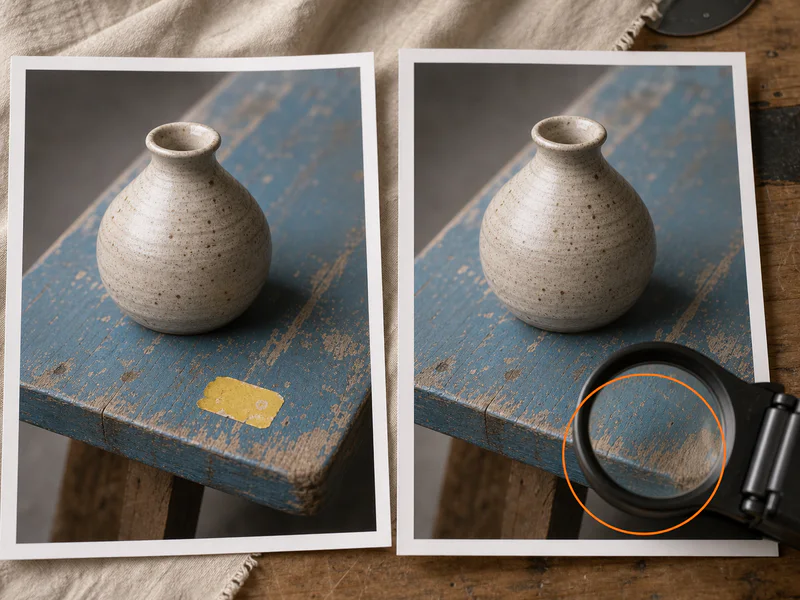
Object removal is a creative editing aid, not a guarantee of pixel-perfect reconstruction in every scene.
Overlapping people, hidden backgrounds, or objects partly outside the frame can make the reconstructed area less consistent.
Small typography, labels, logos, and precise product markings may need manual checking or a cleaner source image.
Glass, mirrors, water, transparent materials, and complex highlights can require multiple attempts.
If the filled area does not match the camera angle or available visual space, refine the selection and regenerate.
Only edit content you have the right to use. Preserve the original image when accuracy, disclosure, or historical context matters.
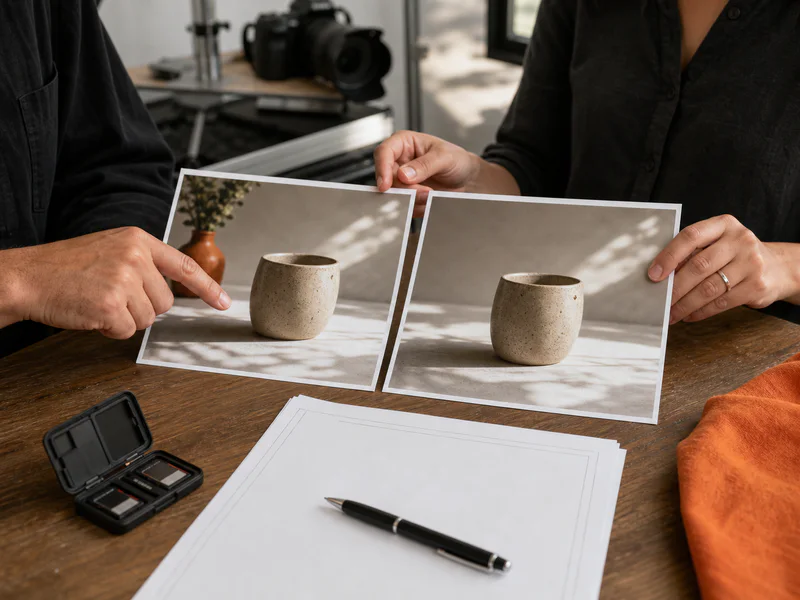
Choose the tool that matches the next change you want to make.
Upload an image, mark the unwanted object, and create a cleaner version in a few steps. Keep the original file, review important details, and use AI editing responsibly.
Try AI Object Remover